Skip to content

VANHA KOTI STUDIO

  • THEME SET UP & TUTORIALS
  • Submit A Ticket
VANHA KOTI STUDIO

Getting Started

1
  • Install Your Theme and Import Demo Content

Niina

13
  • Install Your Theme and Import Demo Content
  • Changing Website Colors
  • Changing the Logo
  • Changing Fonts
  • Styling Your Buttons
  • Editing Newsletter Form
  • Editing Shop My Favs / Affiliate Links Section
  • Editing and Customizing Menu
  • Editing The Footer
  • Customizing Blog Sidebar
  • How to Edit Blog Category Index
  • Editing Text, Replacing Images and Updating Button Links
  • Editing Header Section

Tilda

10
  • Install Your Theme and Import Demo Content
  • Changing Website Colors
  • Changing the Logo
  • Changing Fonts
  • Styling Your Buttons
  • Editing Newsletter Form
  • Editing and Customizing Menu
  • Editing The Footer
  • Editing Text, Replacing Images and Updating Button Links
  • Editing Header Section

Niina Lifestye

13
  • Install Your Theme and Import Demo Content
  • Changing Website Colors
  • Changing the Logo
  • Changing Fonts
  • Styling Your Buttons
  • Editing Newsletter Form
  • Editing Shop My Favs / Affiliate Links Section
  • Editing and Customizing Menu
  • Editing The Footer
  • Customizing Blog Sidebar
  • How to Edit Blog Category Index
  • Editing Text, Replacing Images and Updating Button Links
  • Editing Header Section

Susan

13
  • Install Your Theme and Import Demo Content
  • Changing Website Colors
  • Changing the Logo
  • Changing Fonts
  • Styling Your Buttons
  • Editing Newsletter Form
  • Editing Shop My Favs / Affiliate Links Section
  • Editing and Customizing Menu
  • Editing The Footer
  • Customizing Blog Sidebar
  • How to Edit Blog Category Index
  • Editing Text, Replacing Images and Updating Button Links
  • Editing Header Section

Enni

13
  • Install Your Theme and Import Demo Content
  • Changing Website Colors
  • Changing the Logo
  • Changing Fonts
  • Styling Your Buttons
  • Editing Newsletter Form
  • Editing Shop My Favs / Affiliate Links Section
  • Editing and Customizing Menu
  • Editing The Footer
  • Customizing Blog Sidebar
  • How to Edit Blog Category Index
  • Editing Text, Replacing Images and Updating Button Links
  • Editing Header Section

Sohvi

10
  • Install Your Theme and Import Demo Content
  • Changing Website Colors
  • Changing the Logo
  • Changing Fonts
  • Styling Your Buttons
  • Editing Newsletter Form
  • Editing and Customizing Menu
  • Editing The Footer
  • Editing Text, Replacing Images and Updating Button Links
  • Editing Header Section

Sohvi Dark

9
  • Install Your Theme and Import Demo Content
  • Changing Website Colors
  • Changing the Logo
  • Changing Fonts
  • Styling Your Buttons
  • Editing and Customizing Menu
  • Editing The Footer
  • Editing Text, Replacing Images and Updating Button Links
  • Editing Header Section

Sohvi Blog

13
  • Install Your Theme and Import Demo Content
  • Changing Website Colors
  • Changing the Logo
  • Changing Fonts
  • Styling Your Buttons
  • Editing Shop My Favs / Affiliate Links Section
  • Editing and Customizing Menu
  • Editing The Footer
  • Customizing Blog Sidebar
  • How to Edit Blog Category Index
  • Editing Text, Replacing Images and Updating Button Links
  • Editing Header Section
  • Editing Blog Category Tabs

Inkeri

11
  • Install Your Theme and Import Demo Content
  • Changing Website Colors
  • Changing the Logo
  • Changing Fonts
  • Styling Your Buttons
  • Editing and Customizing Menu
  • Editing The Footer
  • Editing Text, Replacing Images and Updating Button Links
  • Editing Header Section
  • Uploading Custom Fonts
  • Converting Fonts From OTF or TTF Files to WOFF

Hanna

10
  • Install Your Theme and Import Demo Content
  • Changing Website Colors
  • Changing the Logo
  • Changing Fonts
  • Styling Your Buttons
  • Editing and Customizing Menu
  • Editing The Footer
  • Editing Text, Replacing Images and Updating Button Links
  • Editing Header Section
  • Converting Fonts From OTF or TTF Files to WOFF

Aurora

15
  • Install Your Theme and Import Demo Content
  • Changing Website Colors
  • Changing the Logo
  • Changing Fonts
  • Styling Your Buttons
  • Editing Newsletter Form
  • Editing Shop My Favs / Affiliate Links Section
  • Editing and Customizing Menu
  • Editing The Footer
  • Customizing Blog Sidebar
  • Editing Text, Replacing Images and Updating Button Links
  • Editing Header Section
  • Editing Blog Category Tabs
  • Uploading Custom Fonts
  • Converting Fonts From OTF or TTF Files to WOFF

Meri

13
  • Install Your Theme and Import Demo Content
  • Changing Website Colors
  • Changing the Logo
  • Changing Fonts
  • Styling Your Buttons
  • Editing and Customizing Menu
  • Editing The Footer
  • Editing Text, Replacing Images and Updating Button Links
  • Editing Header Section
  • Uploading Custom Fonts
  • Converting Fonts From OTF or TTF Files to WOFF
  • Duplicating Single Portfolio Page
  • Editing Homepage Services Section

Alma

13
  • Install Your Theme and Import Demo Content
  • Changing Website Colors
  • Changing the Logo
  • Changing Fonts
  • Styling Your Buttons
  • Editing Shop My Favs / Affiliate Links Section
  • Editing and Customizing Menu
  • Customizing Blog Sidebar
  • Editing Text, Replacing Images and Updating Button Links
  • Editing Header Section
  • Editing Blog Category Tabs
  • Uploading Custom Fonts
  • Converting Fonts From OTF or TTF Files to WOFF

Lotta

5
  • Install Your Theme & Import Demo Content
  • Changing Colors & Fonts
  • Editing Text & Replacing Images
  • Uploading Custom Fonts
  • Uploading Logo & Favicon

Isla

5
  • Install Your Theme & Import Demo Content
  • Changing Colors & Fonts
  • Editing Text & Replacing Images
  • Uploading Custom Fonts
  • Uploading Logo & Favicon

Kiara Lifestyle

5
  • Install Your Theme & Import Demo Content
  • Changing Colors & Fonts
  • Editing Text & Replacing Images
  • Uploading Custom Fonts
  • Uploading Logo & Favicon
  • Home
  • support
  • Isla
  • Uploading Custom Fonts
View Categories

Uploading Custom Fonts

This section will guide you through uploading custom fonts to your Elementor theme. For tutorial purposes, I am using the Isla theme.

Note:
• The Isla theme uses the Cresinta font, which is free for personal use and can be found here.
• The Lotta theme uses Altheyra, which is also available for personal sites here.
• The Kiara Lifestyle theme uses Shuvena Regular, which is also available for personal sites here.

Table of Contents
  • Uploading Fonts
  • Important:

Uploading Fonts


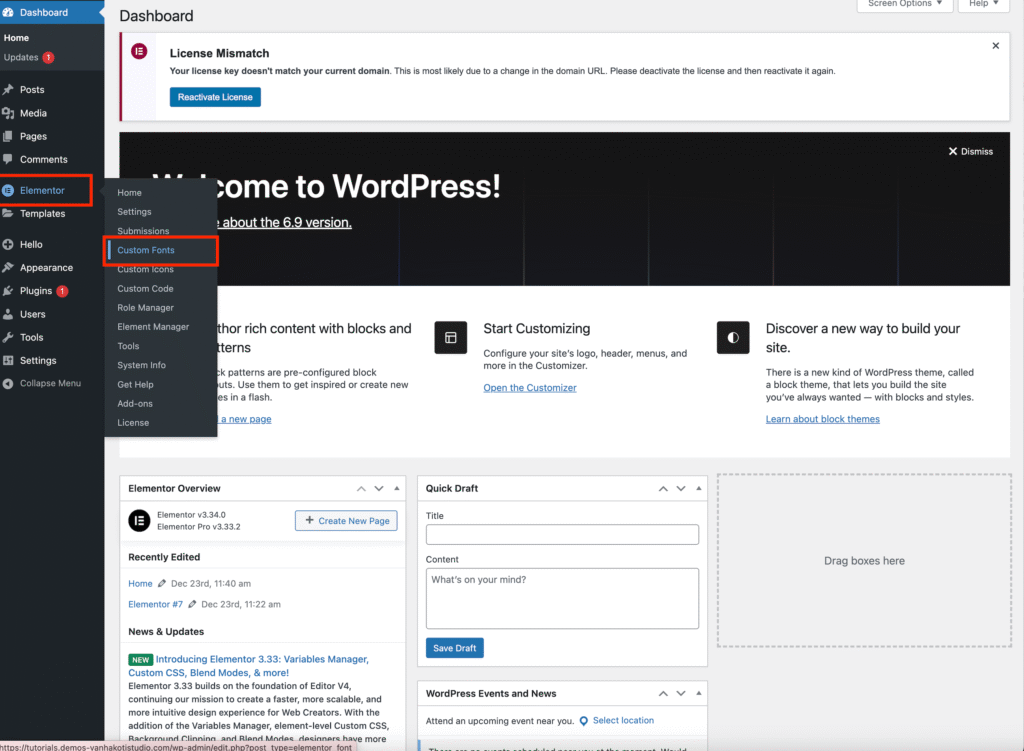
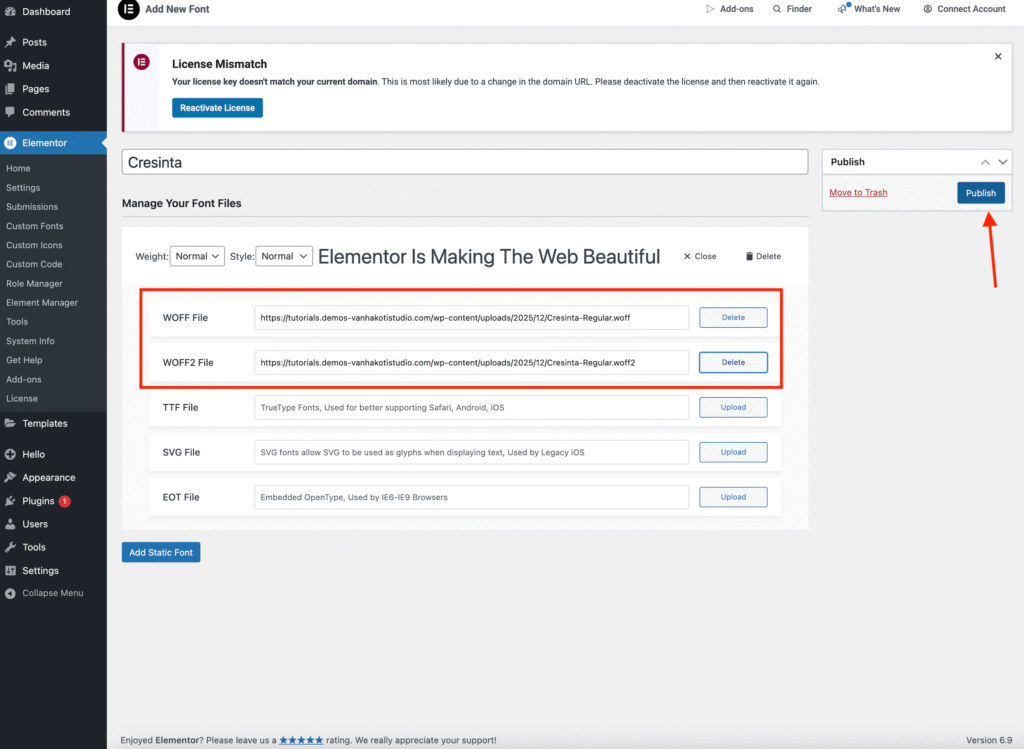
1. From your WordPress Dashboard, navigate to Elementor → Custom Fonts.

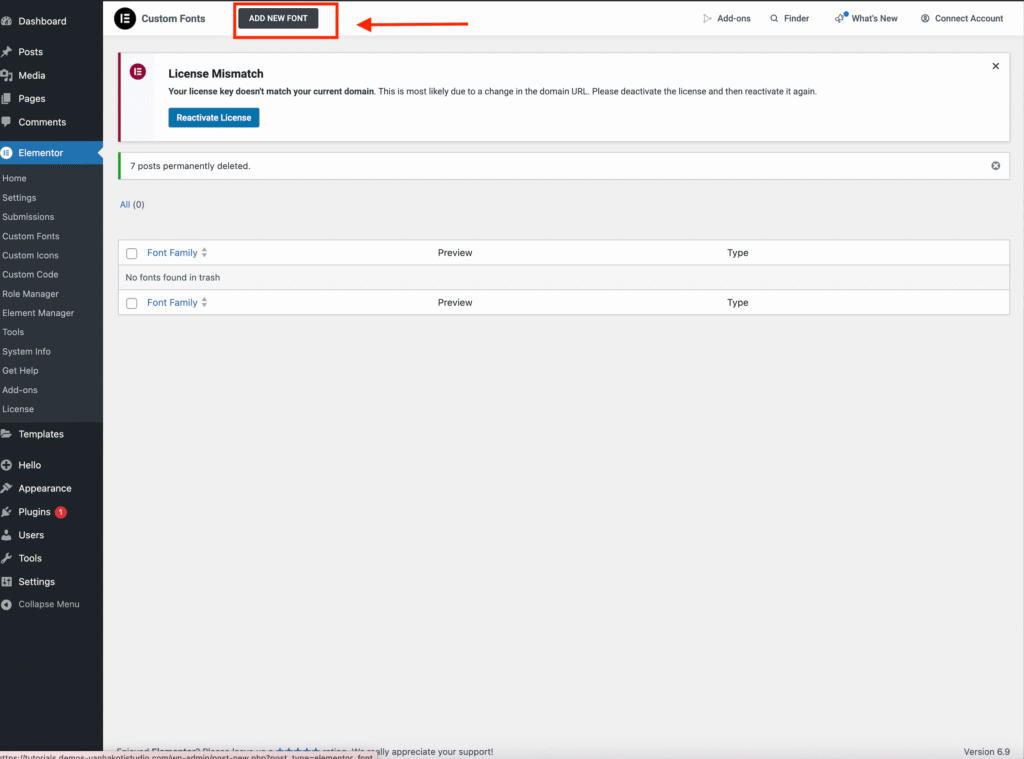
2. Click the Add New Font button.

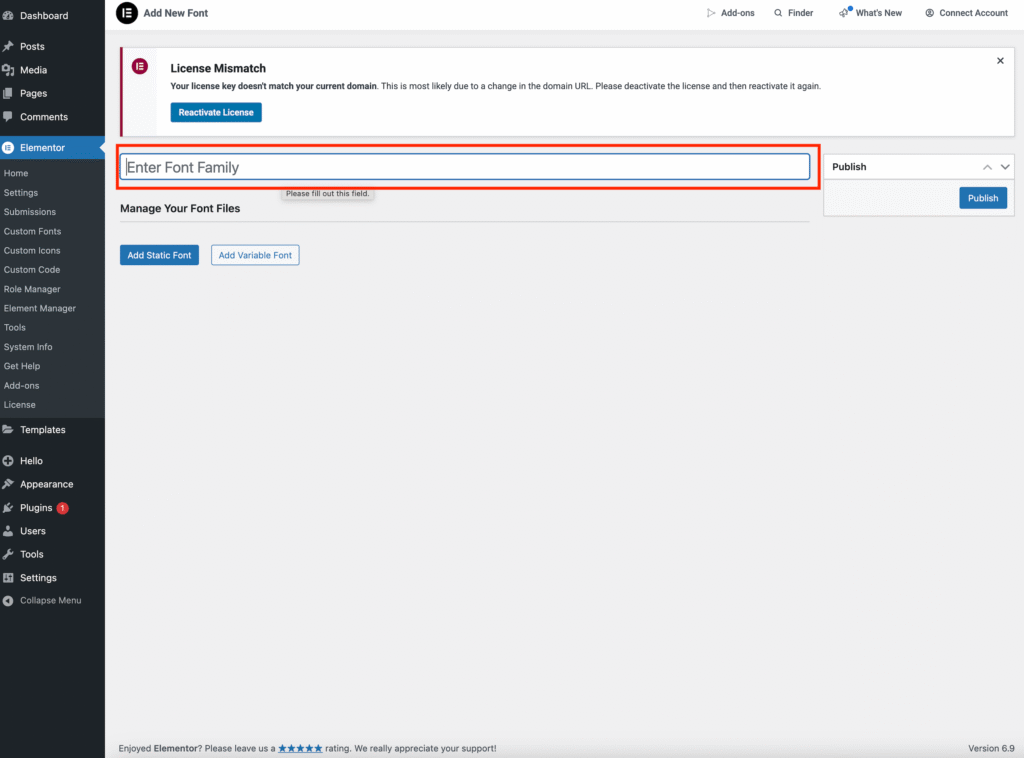
3. Enter the Font Family Name, which is the name of the font you purchased.
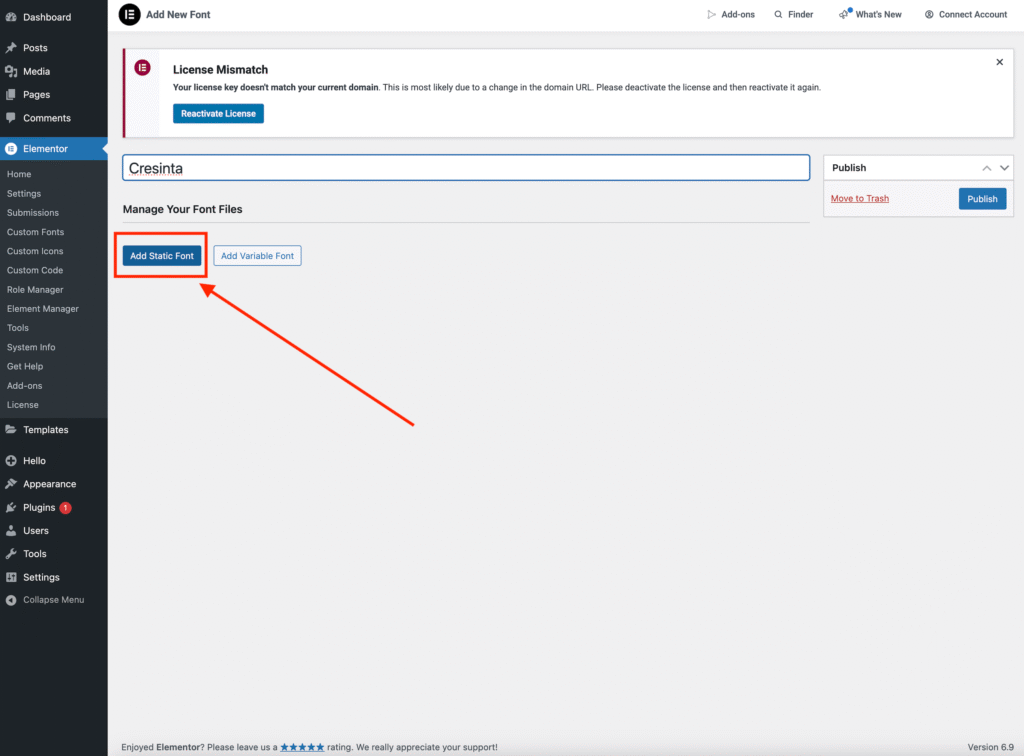
(For this tutorial, we are using the Cresinta font.)

Then click Add Static Fonts.

4. Upload both your .woff and .woff2 files by clicking the Upload button.
5. Click Publish.


Your uploaded fonts will now appear in the Fonts section within Elementor.
Important:


If your font files are not in .woff or .woff2 format, you will need to convert them first. You can find a guide to converting fonts here.

Elementor Pro
Editing Text & Replacing ImagesUploading Logo & Favicon

Leave a Reply Cancel reply

Your email address will not be published. Required fields are marked *

COPYRIGHT §2025 VANHA KOTI STUDIO

  • THEME SET UP & TUTORIALS
  • Submit A Ticket