Skip to content

VANHA KOTI STUDIO

  • THEME SET UP & TUTORIALS
  • Submit A Ticket
VANHA KOTI STUDIO

Getting Started

1
  • Install Your Theme and Import Demo Content

Tilda

10
  • Install Your Theme and Import Demo Content
  • Changing Website Colors
  • Changing the Logo
  • Changing Fonts
  • Styling Your Buttons
  • Editing Newsletter Form
  • Editing and Customizing Menu
  • Editing The Footer
  • Editing Text, Replacing Images and Updating Button Links
  • Editing Header Section

Sohvi

10
  • Install Your Theme and Import Demo Content
  • Changing Website Colors
  • Changing the Logo
  • Changing Fonts
  • Styling Your Buttons
  • Editing Newsletter Form
  • Editing and Customizing Menu
  • Editing The Footer
  • Editing Text, Replacing Images and Updating Button Links
  • Editing Header Section

Sohvi Dark

9
  • Install Your Theme and Import Demo Content
  • Changing Website Colors
  • Changing the Logo
  • Changing Fonts
  • Styling Your Buttons
  • Editing and Customizing Menu
  • Editing The Footer
  • Editing Text, Replacing Images and Updating Button Links
  • Editing Header Section

Sohvi Blog

13
  • Install Your Theme and Import Demo Content
  • Changing Website Colors
  • Changing the Logo
  • Changing Fonts
  • Styling Your Buttons
  • Editing Shop My Favs / Affiliate Links Section
  • Editing and Customizing Menu
  • Editing The Footer
  • Customizing Blog Sidebar
  • How to Edit Blog Category Index
  • Editing Text, Replacing Images and Updating Button Links
  • Editing Header Section
  • Editing Blog Category Tabs

Inkeri

11
  • Install Your Theme and Import Demo Content
  • Changing Website Colors
  • Changing the Logo
  • Changing Fonts
  • Styling Your Buttons
  • Editing and Customizing Menu
  • Editing The Footer
  • Editing Text, Replacing Images and Updating Button Links
  • Editing Header Section
  • Uploading Custom Fonts
  • Converting Fonts From OTF or TTF Files to WOFF

Hanna

10
  • Install Your Theme and Import Demo Content
  • Changing Website Colors
  • Changing the Logo
  • Changing Fonts
  • Styling Your Buttons
  • Editing and Customizing Menu
  • Editing The Footer
  • Editing Text, Replacing Images and Updating Button Links
  • Editing Header Section
  • Converting Fonts From OTF or TTF Files to WOFF

Meri

13
  • Install Your Theme and Import Demo Content
  • Changing Website Colors
  • Changing the Logo
  • Changing Fonts
  • Styling Your Buttons
  • Editing and Customizing Menu
  • Editing The Footer
  • Editing Text, Replacing Images and Updating Button Links
  • Editing Header Section
  • Uploading Custom Fonts
  • Converting Fonts From OTF or TTF Files to WOFF
  • Duplicating Single Portfolio Page
  • Editing Homepage Services Section

Isla

5
  • Install Your Theme & Import Demo Content
  • Changing Colors & Fonts
  • Editing Text & Replacing Images
  • Uploading Custom Fonts
  • Uploading Logo & Favicon
  • Home
  • support
  • Hanna
  • Editing Header Section
View Categories

Editing Header Section

I am using the Enni theme; however, this tutorial applies to all of my designs.


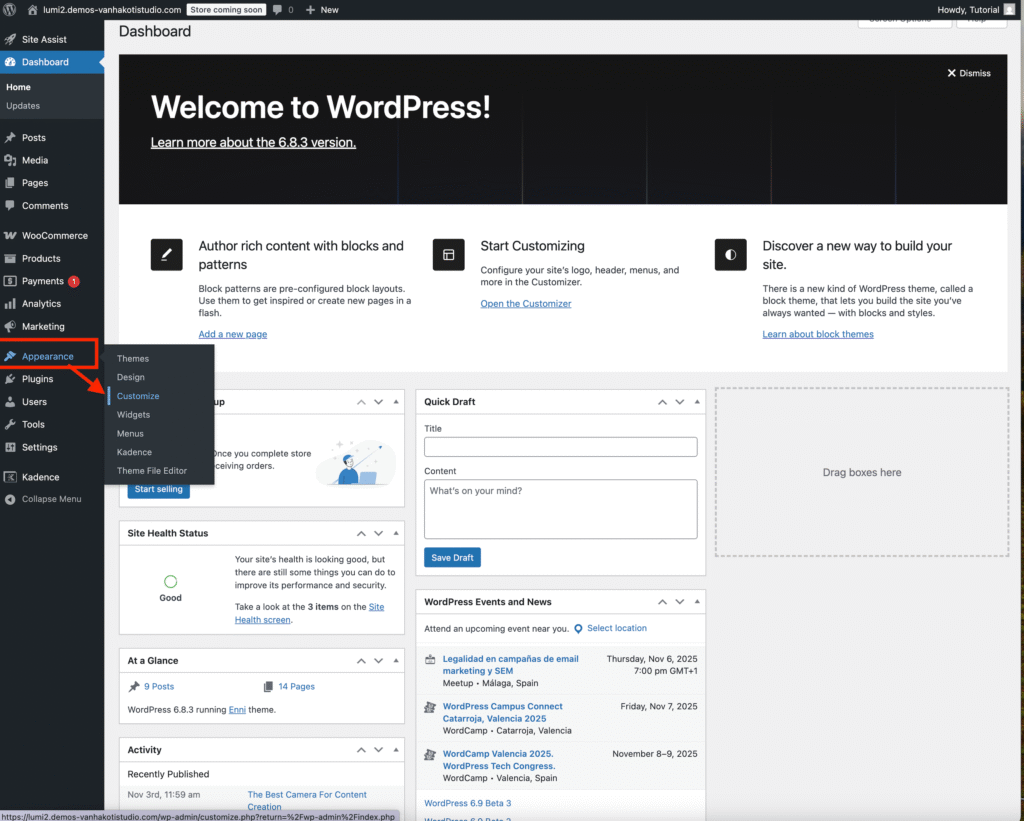
Go to your WordPress dashboard → Appearance → Customize.

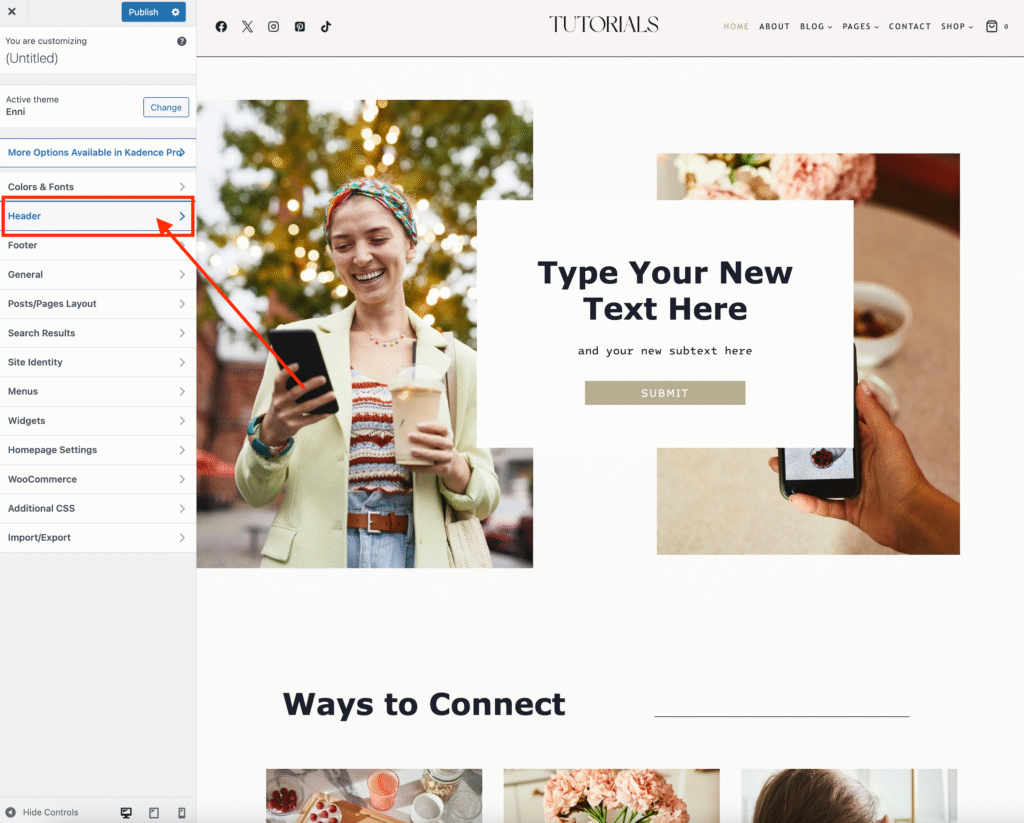
Select the Header button
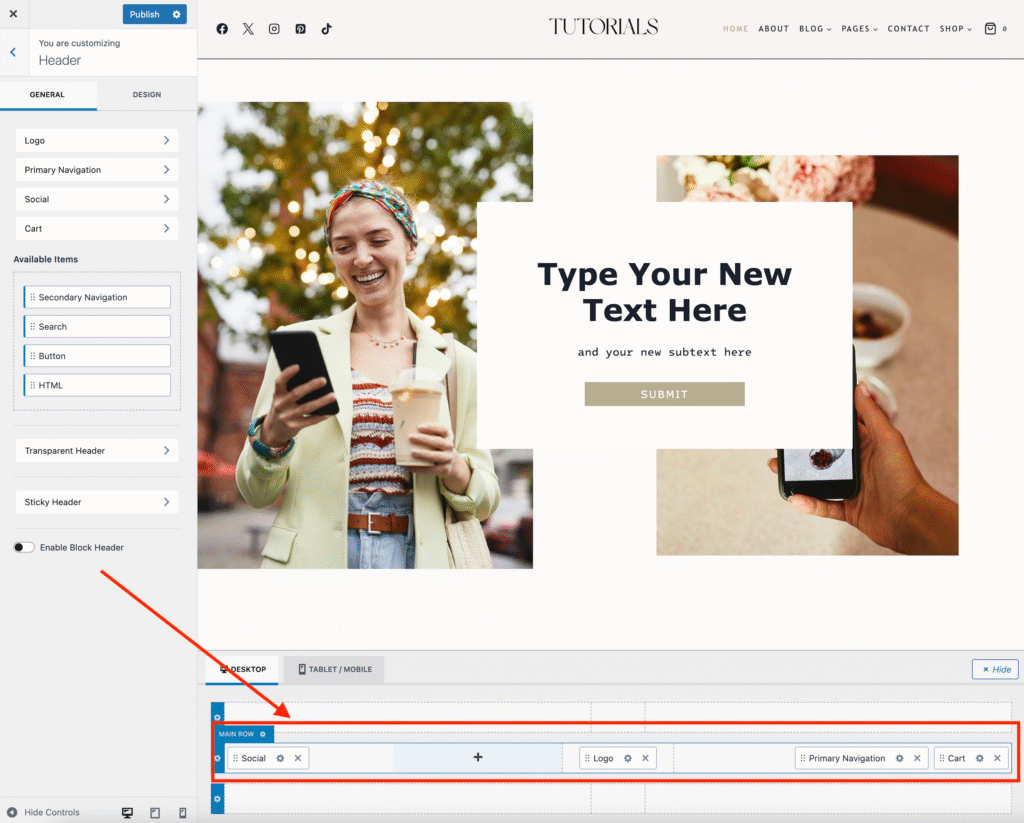
The drag-and-drop header is at the bottom of the page. You can drag and drop the logo, menu, and socials to rearrange them to the location you want. Don’t forget to click Publish to save your changes.
Quick Visual Walkthrough to demonstrate the drag and drop Feature.

Editing Text, Replacing Images and Updating Button LinksConverting Fonts From OTF or TTF Files to WOFF

Leave a Reply Cancel reply

Your email address will not be published. Required fields are marked *

COPYRIGHT §2025 VANHA KOTI STUDIO

  • THEME SET UP & TUTORIALS
  • Submit A Ticket