The newsletter form allows you to collect emails from your visitors and connect them to your email provider. This tutorial applies to all the newsletter forms in VANHA KOTI THEMES. Follow these steps to customize it for your website:
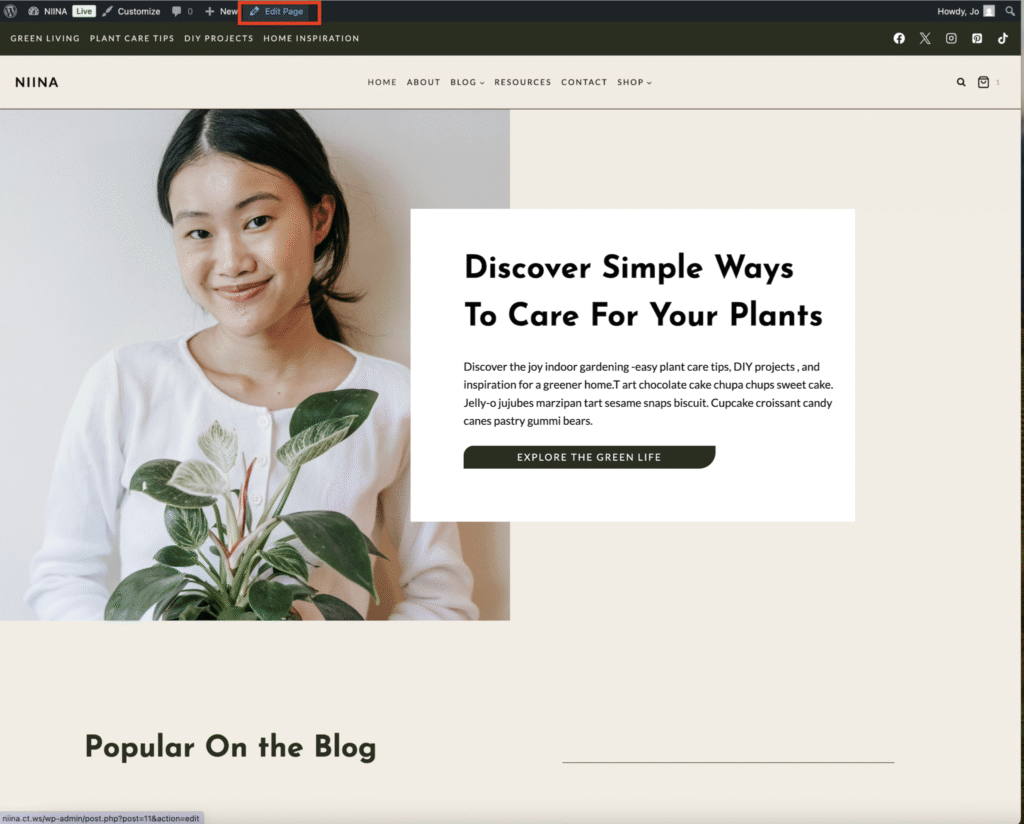
To access the Form Go to your website’s homepage and click the Edit Page button.
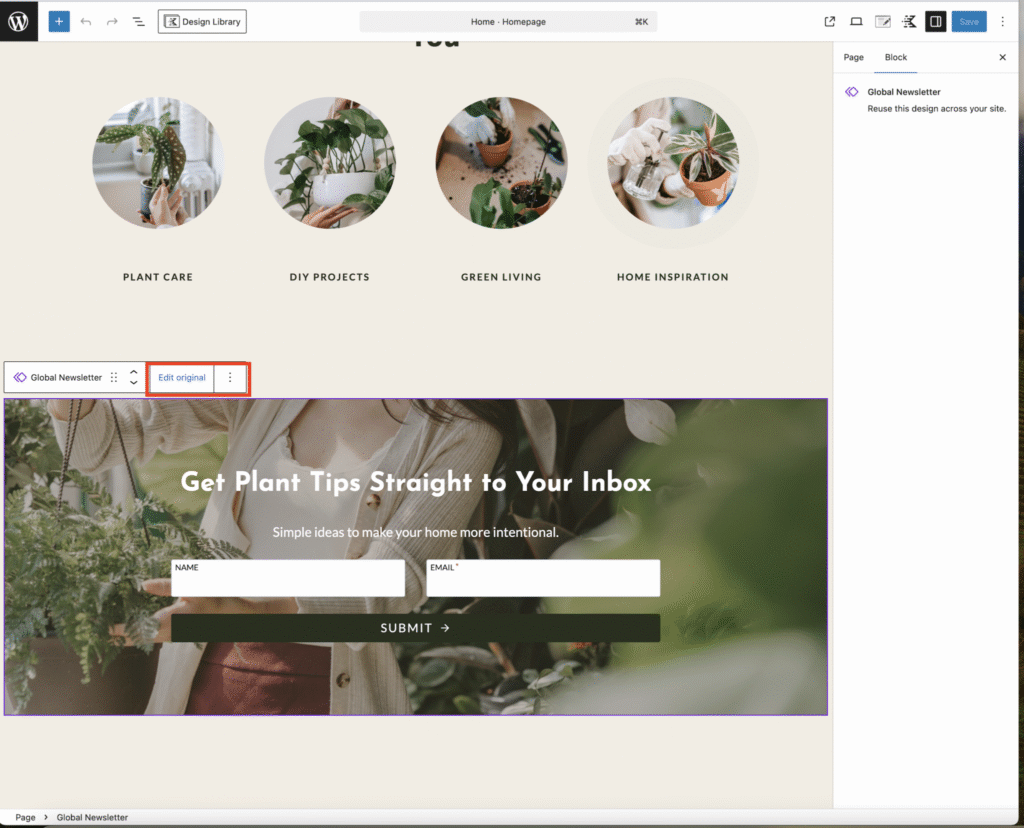
Scroll down to the newsletter form and click on it. You’ll notice the Global Newsletter Label — this means any changes you make here will apply across your entire website wherever the newsletter form appears.
Click Edit Original to start editing.
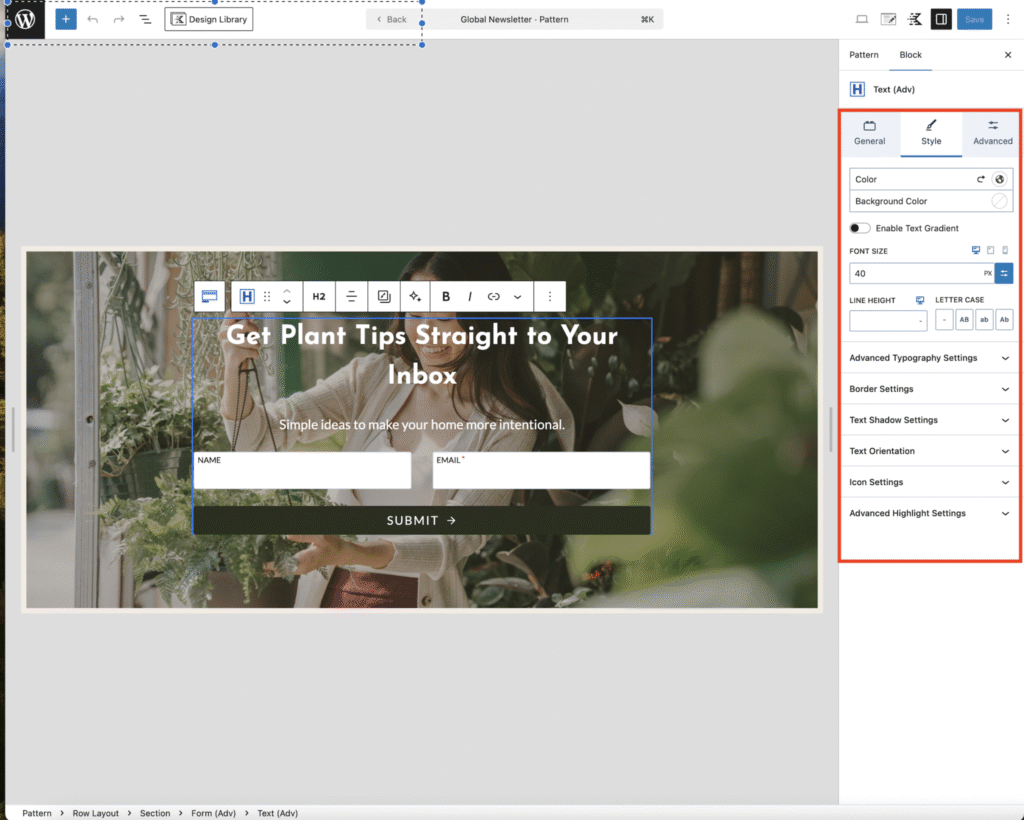
To edit the text Heading
• Click on the filler text in the heading to delete it and type your own.
• On the right-hand sidebar, you can adjust the below options by clicking on the style tab:
• Text color
• Fonts and fonts size – in advanced typography tab or leave it as is for it to inherit the default fonts you set up for your website
• There are many customization options — feel free to experiment to find a style that fits your website.
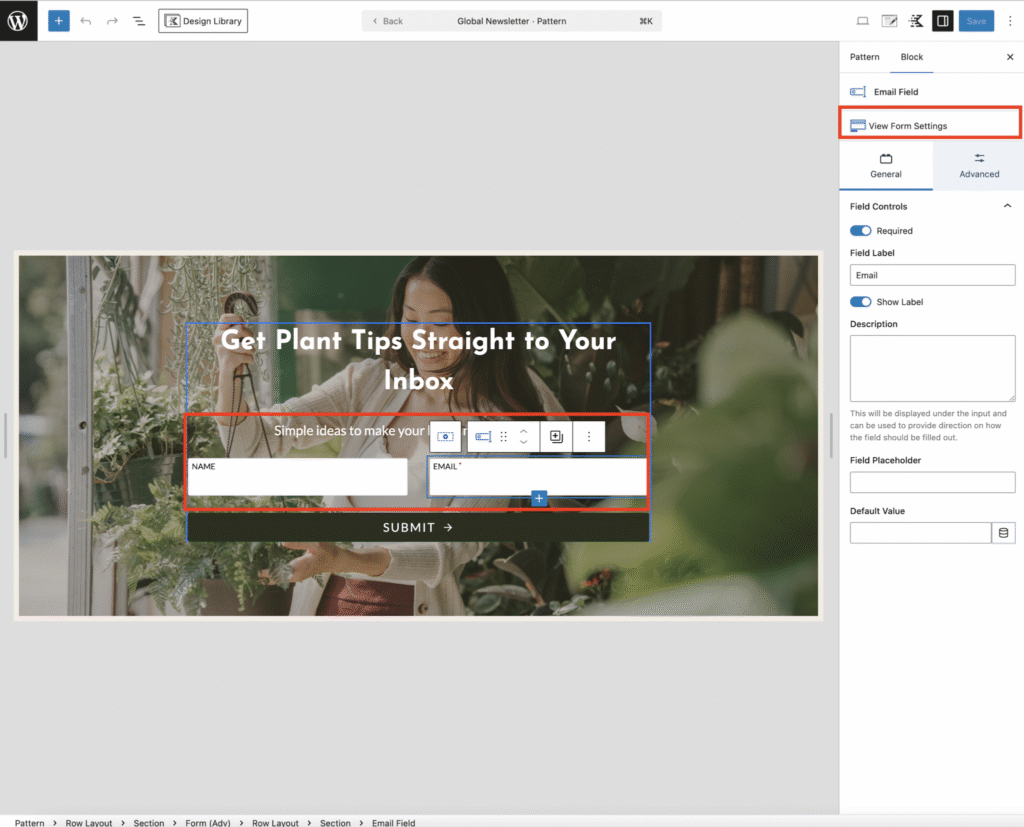
To Customize the Form Click on any area of the form to open the customization options on the right.
Click View Form settings.
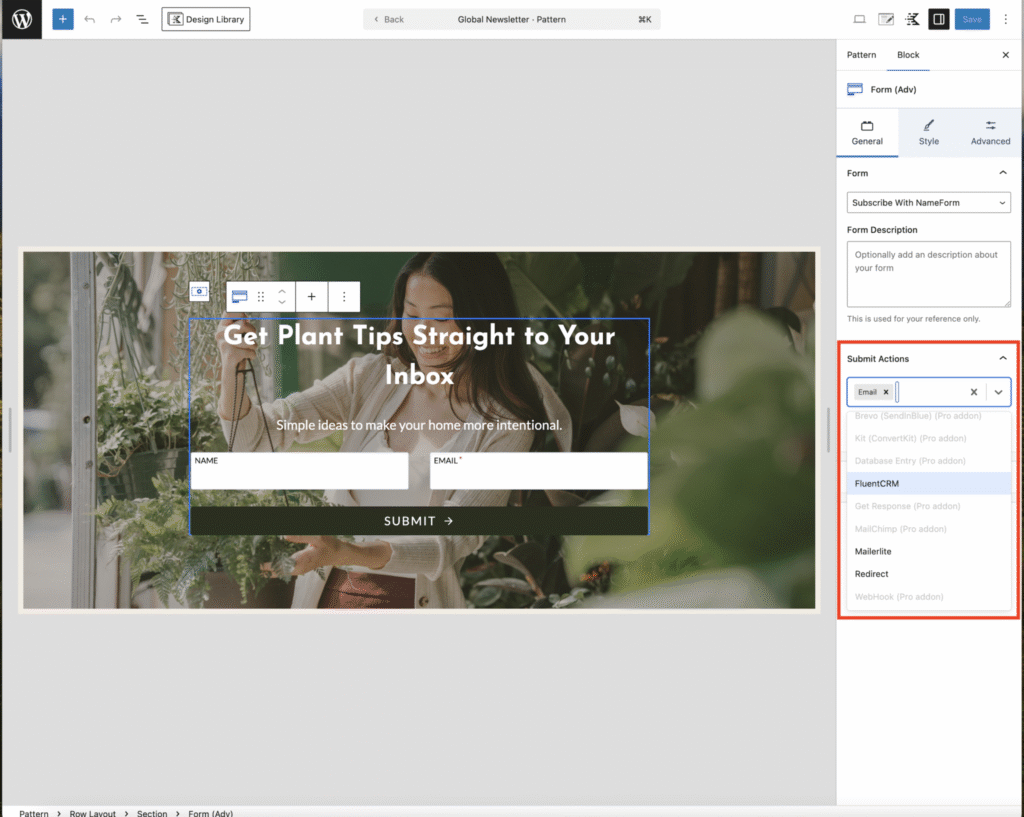
• Set Submit Actions (what the form does after someone types in their email) — email is selected by default .
Click the arrow next to email to select your email marketing provider.
• Free email options include Redirect, FluentCRM, MailerLite if you dont use any of this providers you may need to upgrade your plan.
• Check the drop down options to see if your provider is listed before upgrading your plan to gain access to connect your provider.
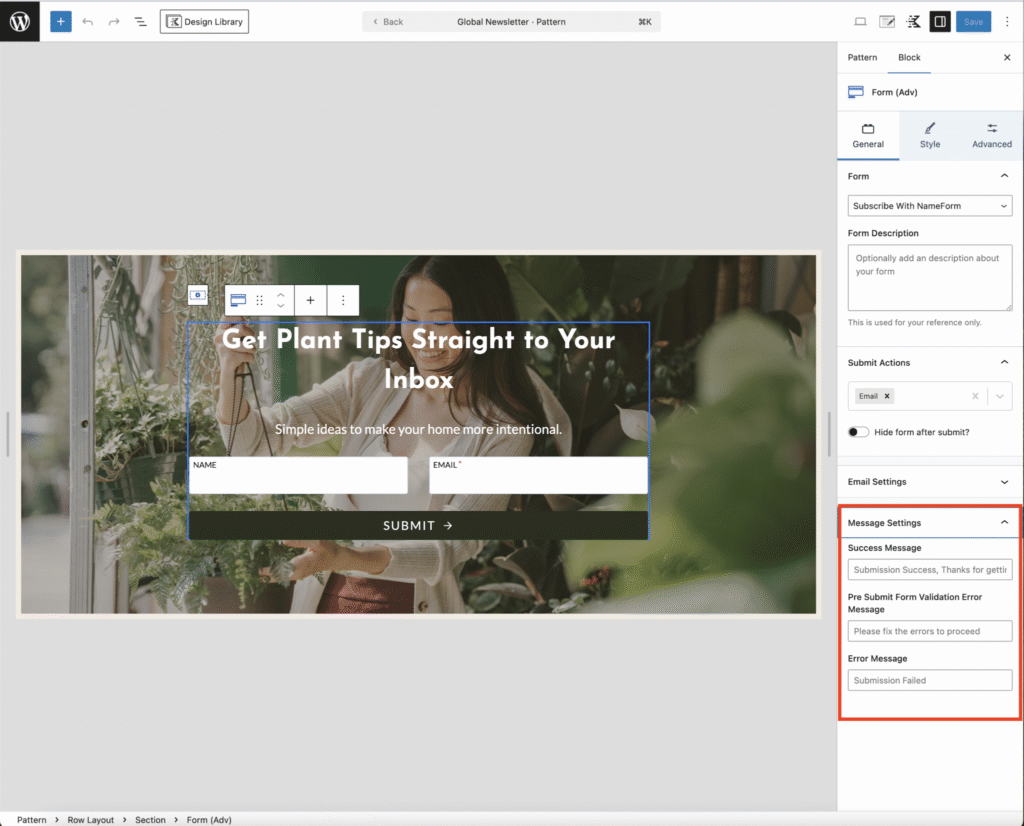
To edit Message Settings ( what happens after a successful subscription or an error).
• Success Message: Text displayed after a successful email submission.
• Pre-Submit Message: Text shown if input is invalid.
• Error Message: Text shown when an error occurs.
Most of these are prefilled and don’t need changing unless you want custom messages displayed.
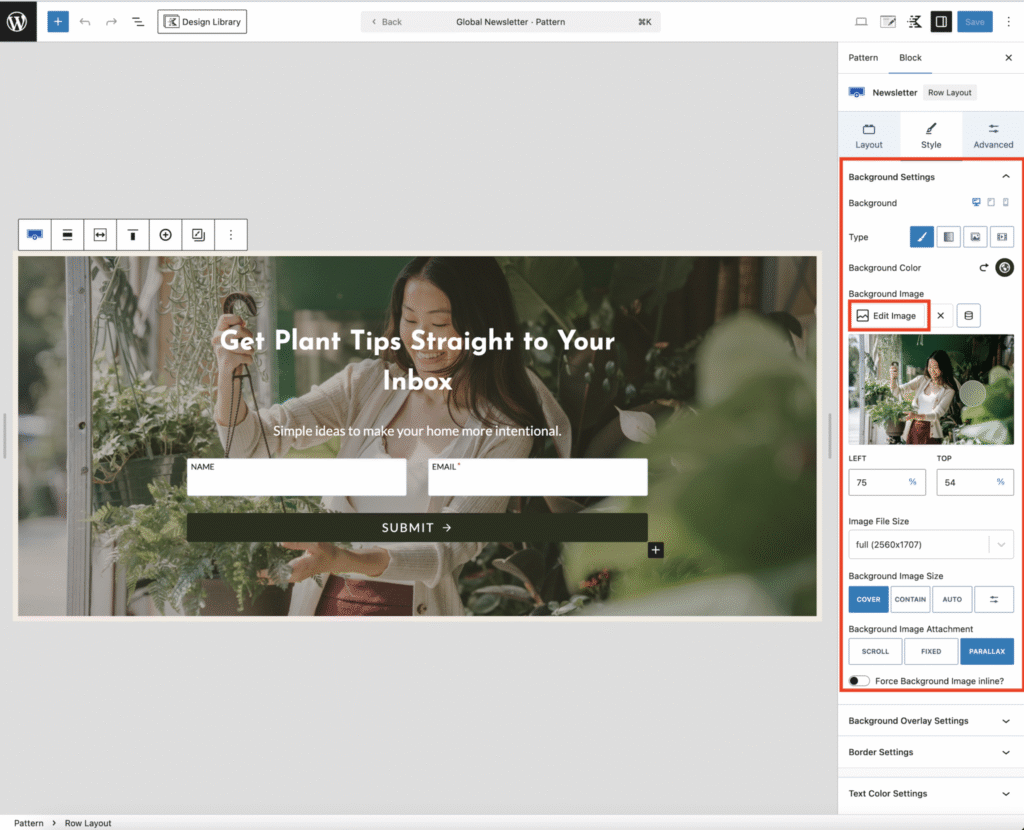
To change the Form Image Background Click on the form’s background image. In the right-hand sidebar, go to the Style tab
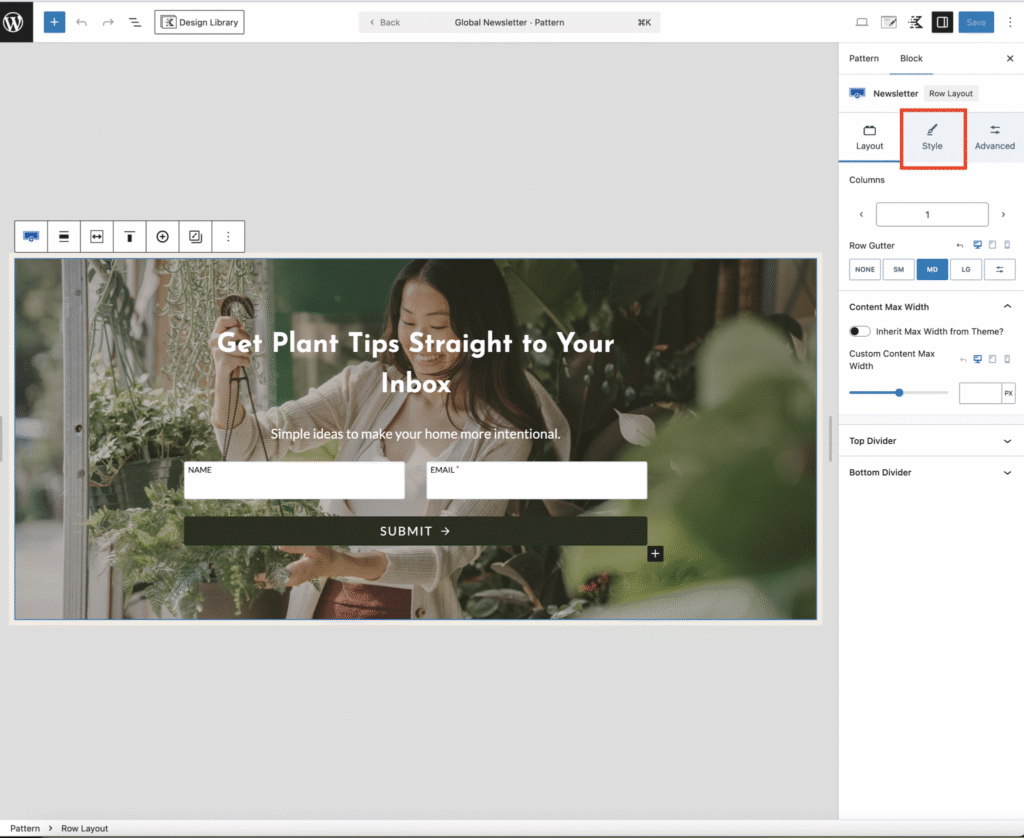
click Edit Image to replace it with your own.
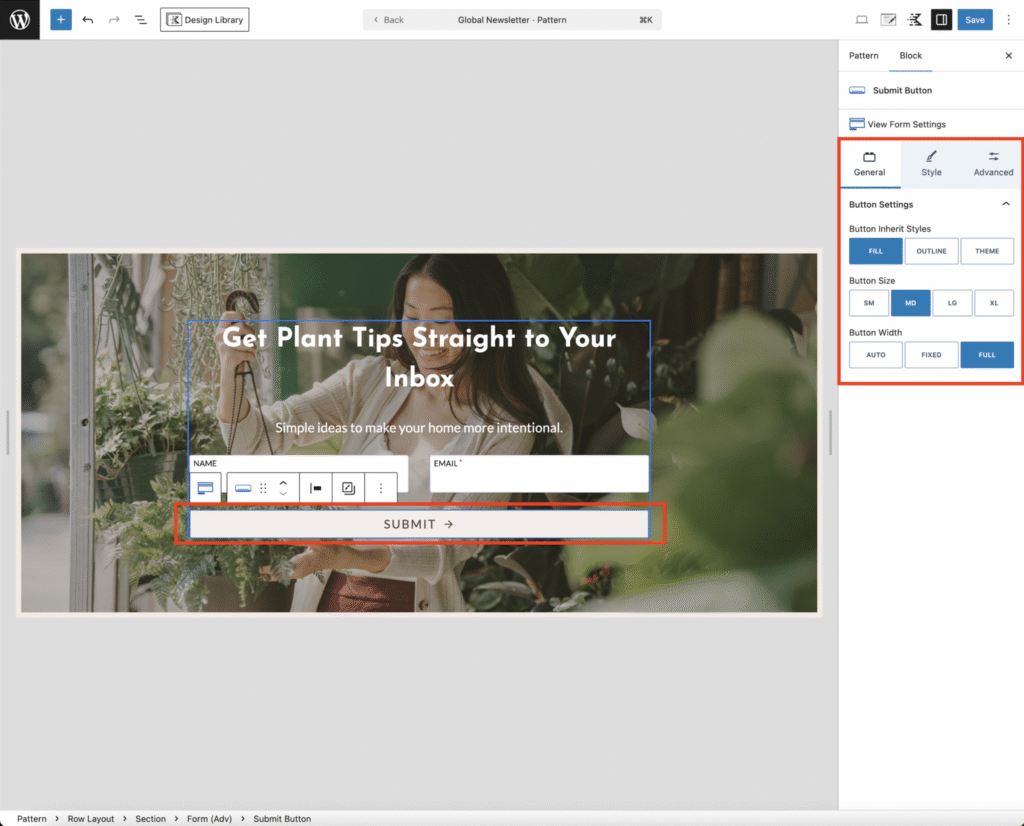
To edit the submit button click on text to open the customization options in the sidebar,
• You can set the button size and width, you can also change the text by clicking on the button and replacing the text with yours.
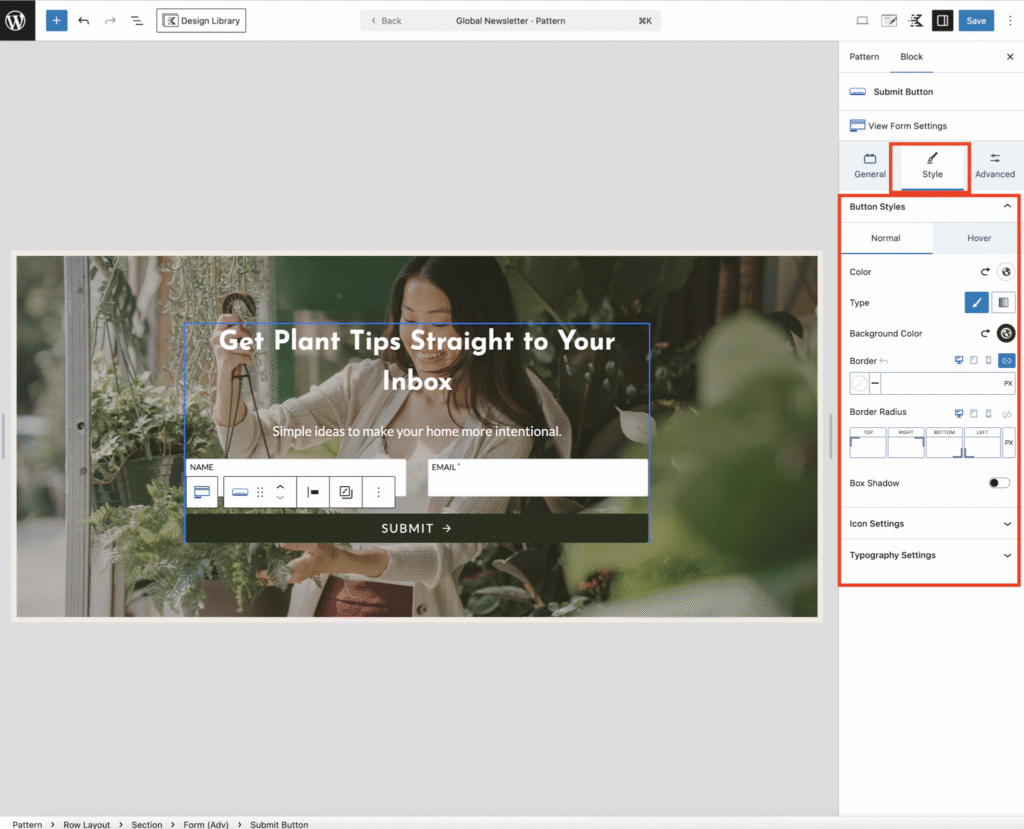
• Click the style tab to view further editing details including button text color, background and many more.
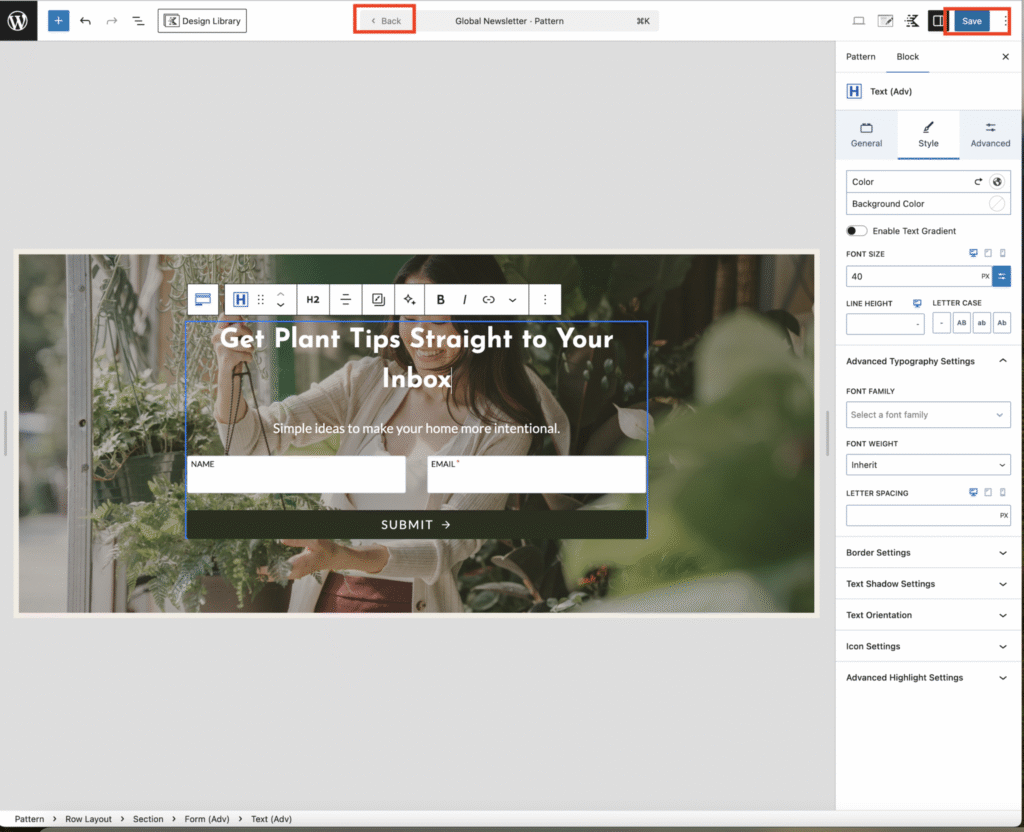
Save Your Changes•
Click Save to update the changes.
• Use the Back button to return to the previous page after saving your changes.