This tutorial will guide you through updating the global colors and fonts for your Elementor theme.
Accessing Site Settings
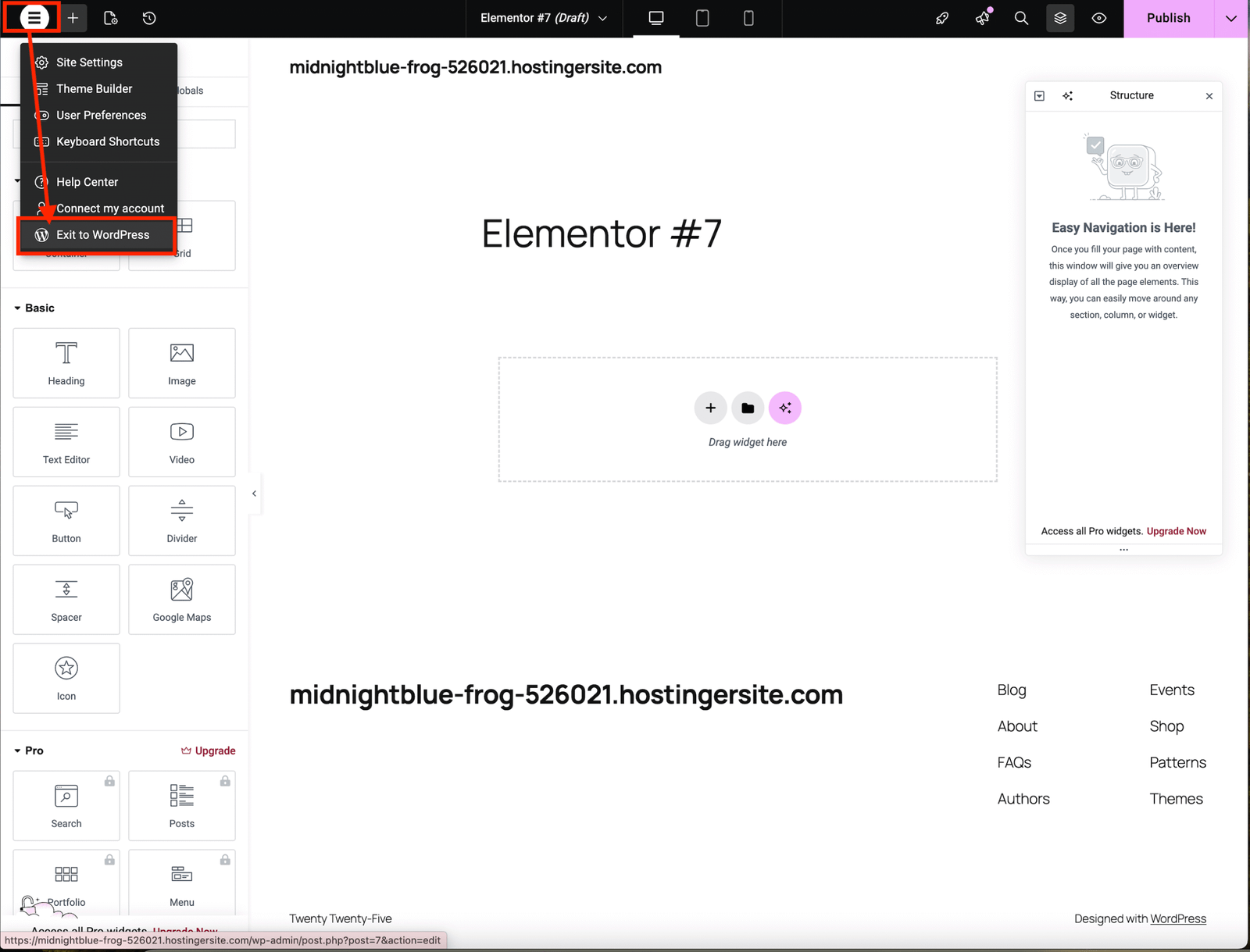
• From your WordPress dashboard, go to Pages.
Find the page you want to edit (for this tutorial, we’ll use the Home Page) and click Edit with Elementor.
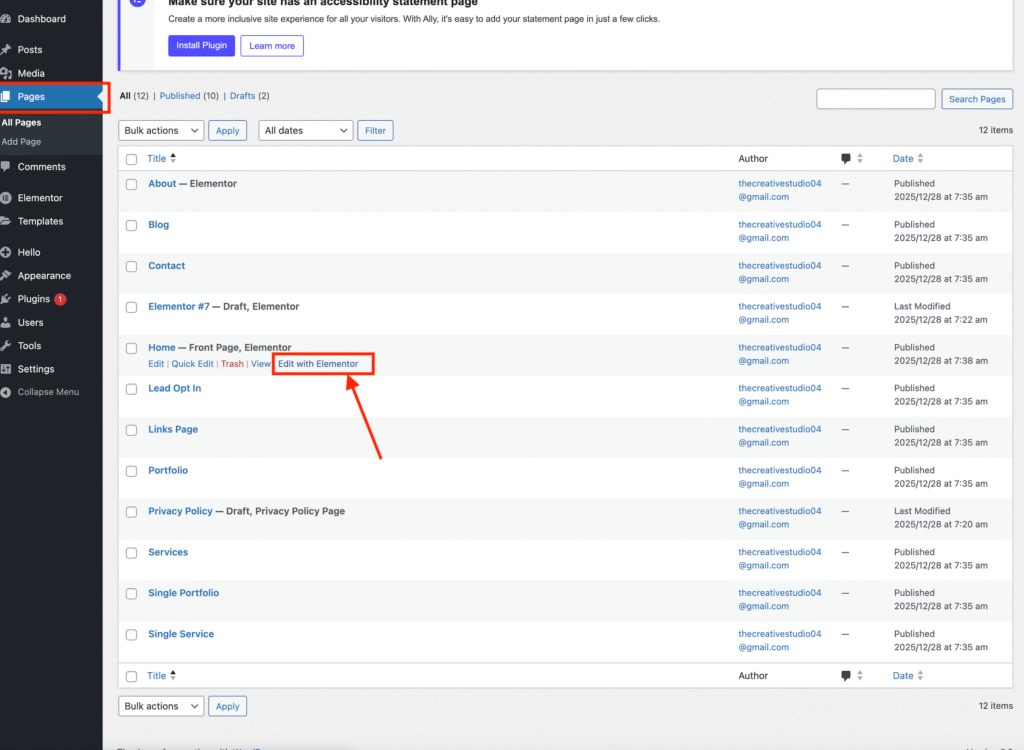
• In the Elementor editor, click the hamburger menu in the top-left corner and select Site Settings.

Setting Colors
• Select Global Colors.

• Replace the existing colors with your own brand colors.
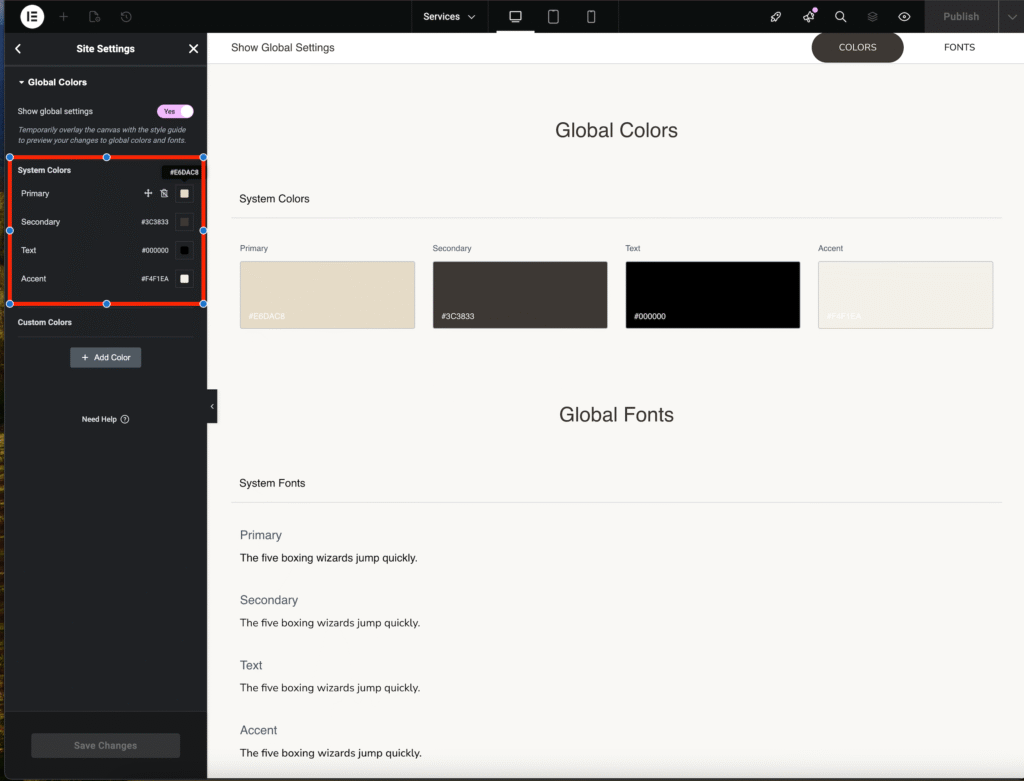
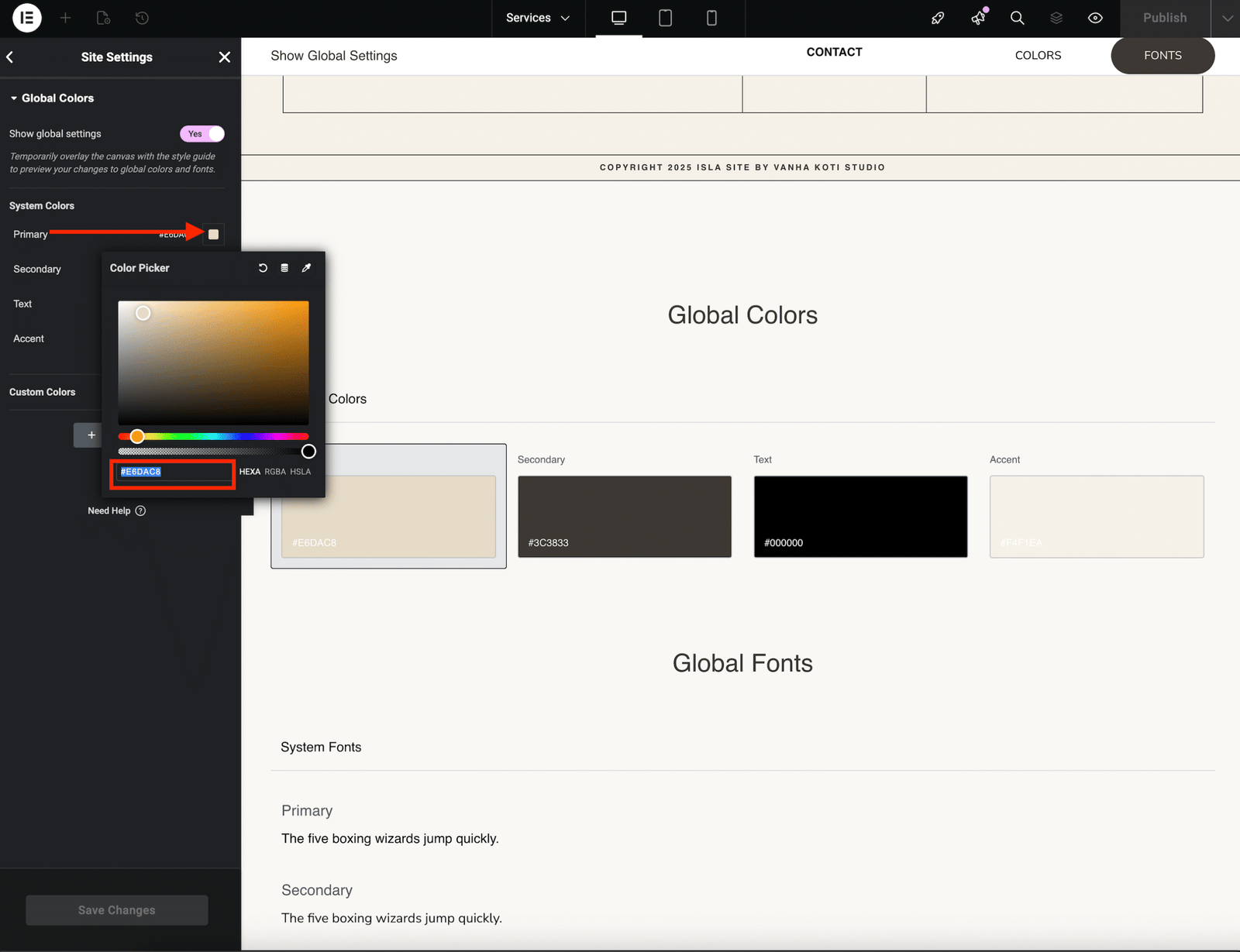
• Click on the color option you want to change and enter your color code.
• Repeat this step for all four color options, from Primary to Accent colors.
• Click Save Changes once you are finished.
Setting Fonts
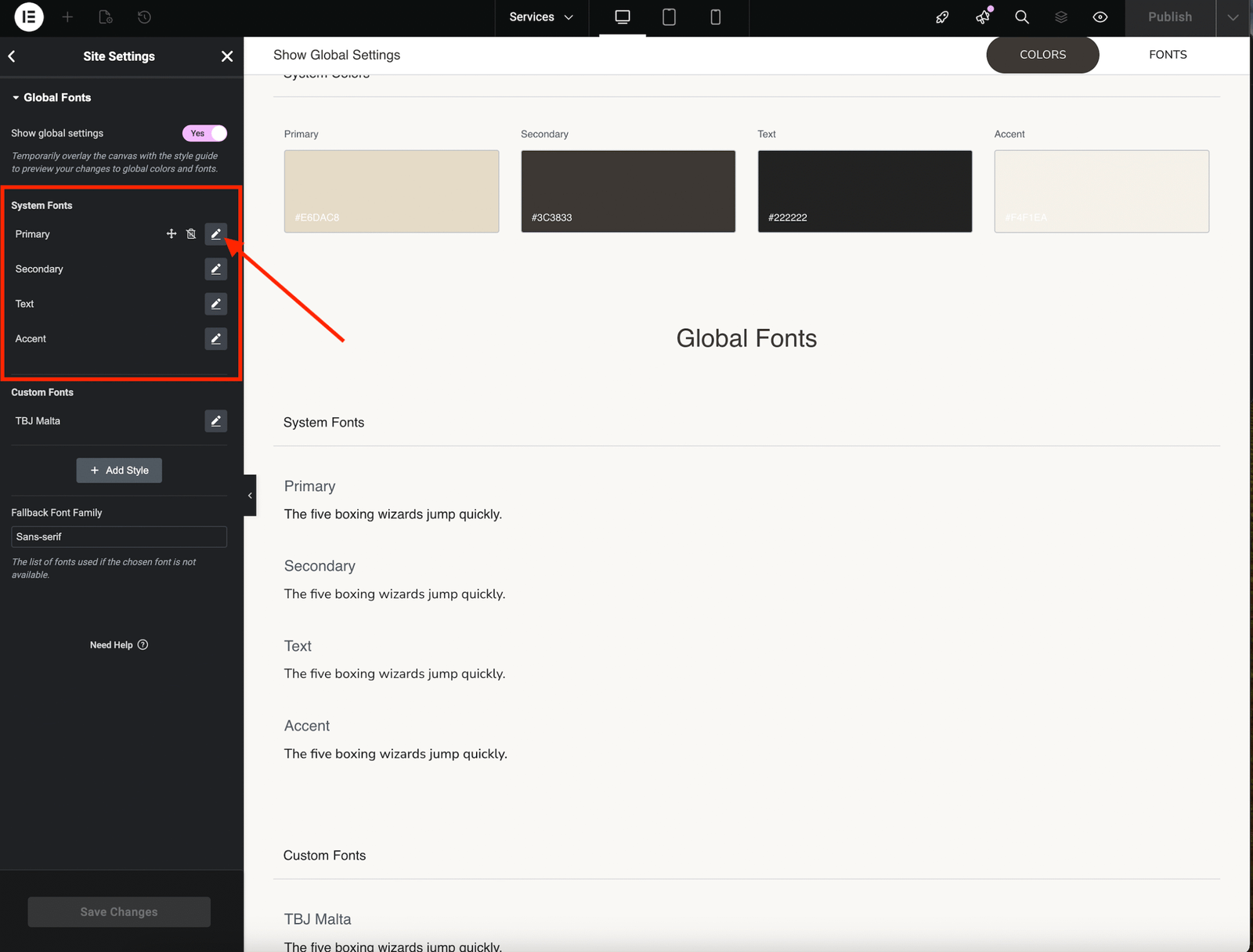
• From Site Settings, select Global Fonts.

• You will see four font options: Primary, Secondary, Text, and Accent.
• Click the pen icon next to the font you want to replace.
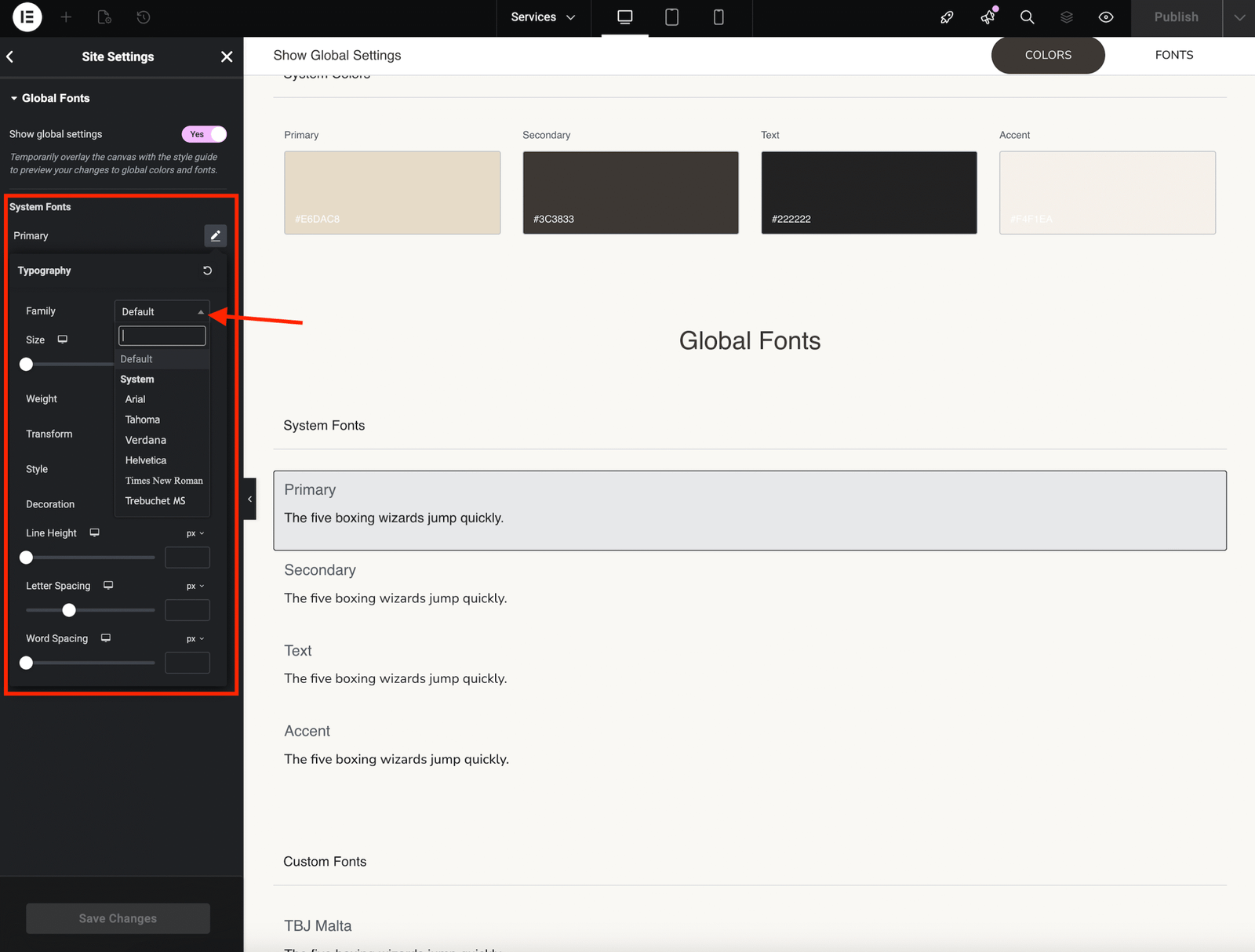
• In the Family section, click the arrow next to Default.
• Search for your font by typing its name or selecting it from the dropdown list.
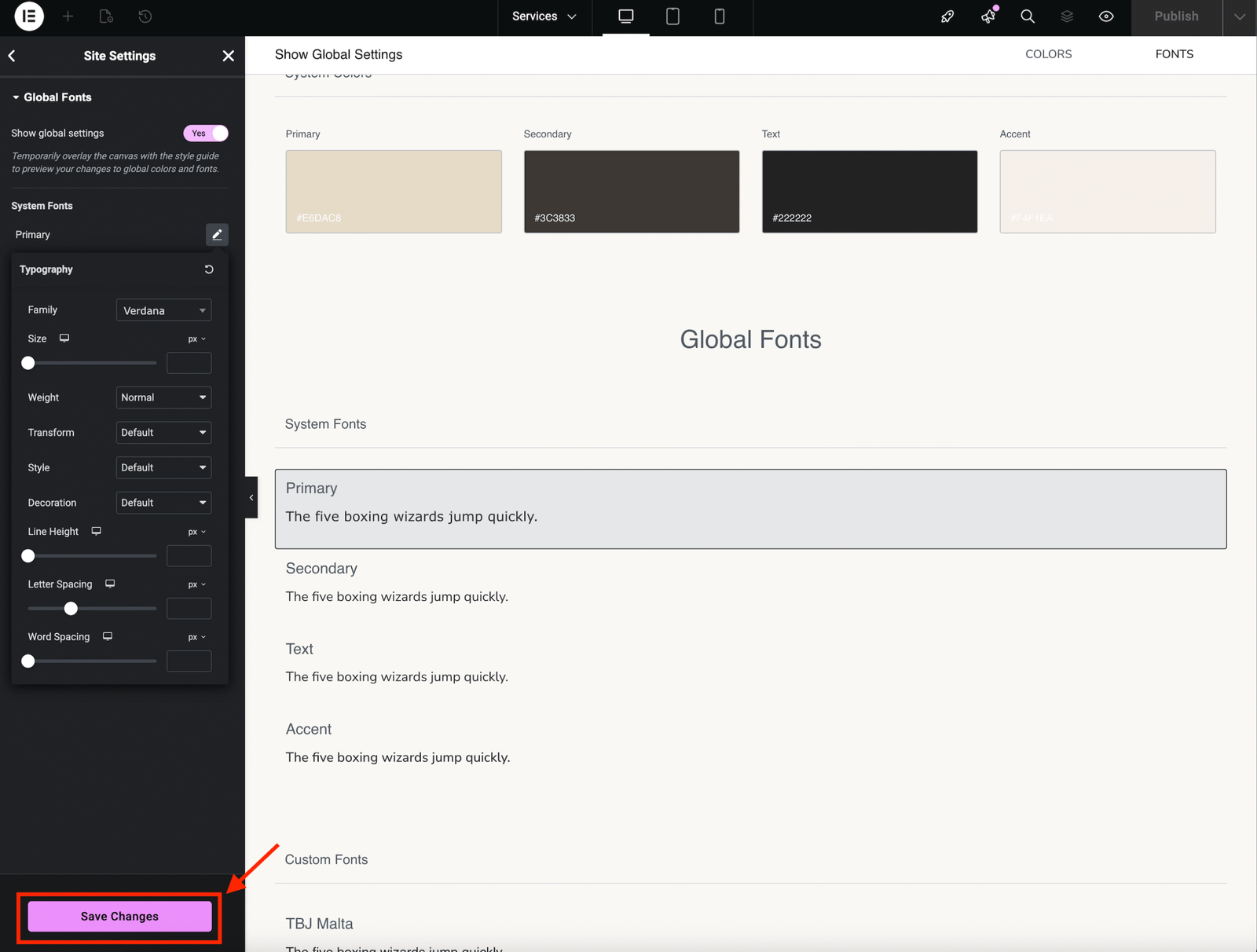
• Click Save Changes once you are done.
Exiting Site Settings
• To return to your WordPress Dashboard, click the hamburger menu again and choose Exit to WordPress.