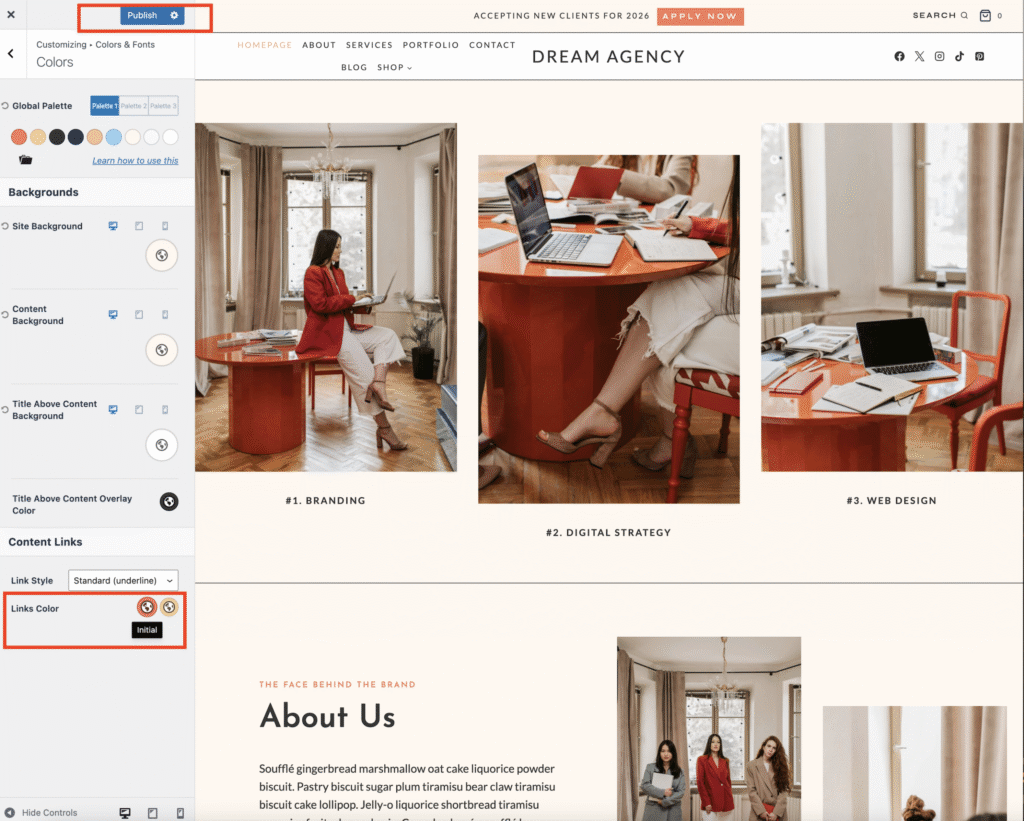
Kadence Theme uses a global color palette to keep your entire site consistent and cohesive.
Go to your WordPress Dashboard → Appearance → Customize.
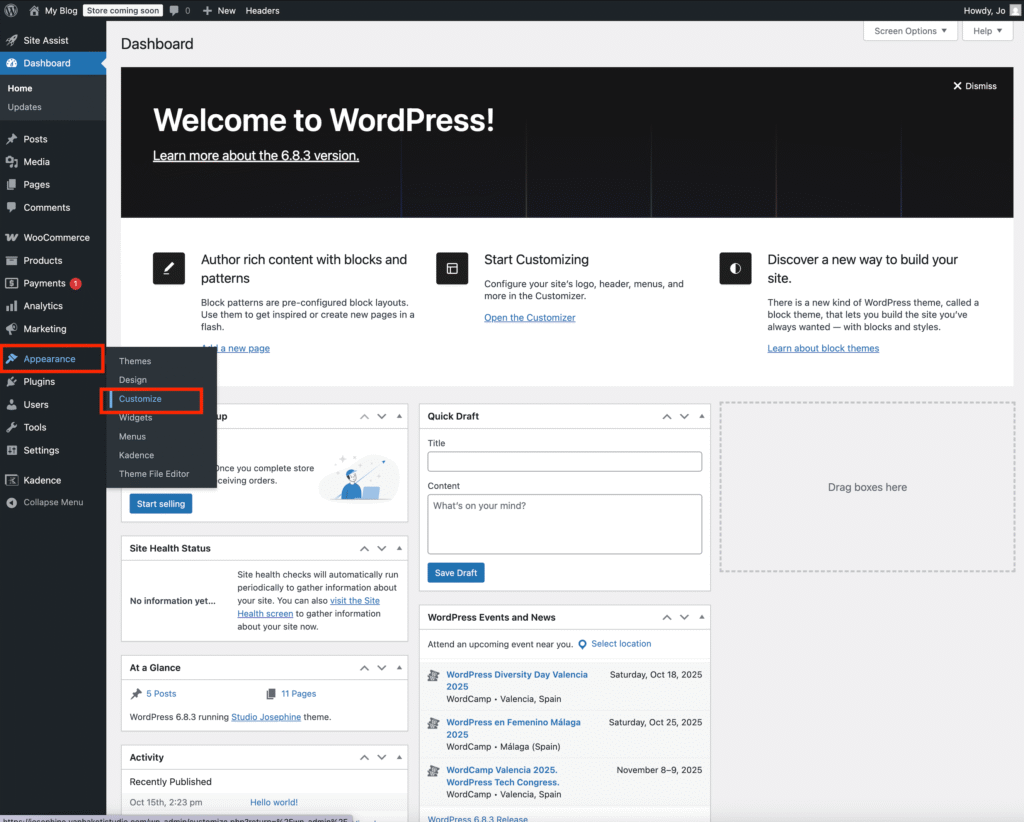
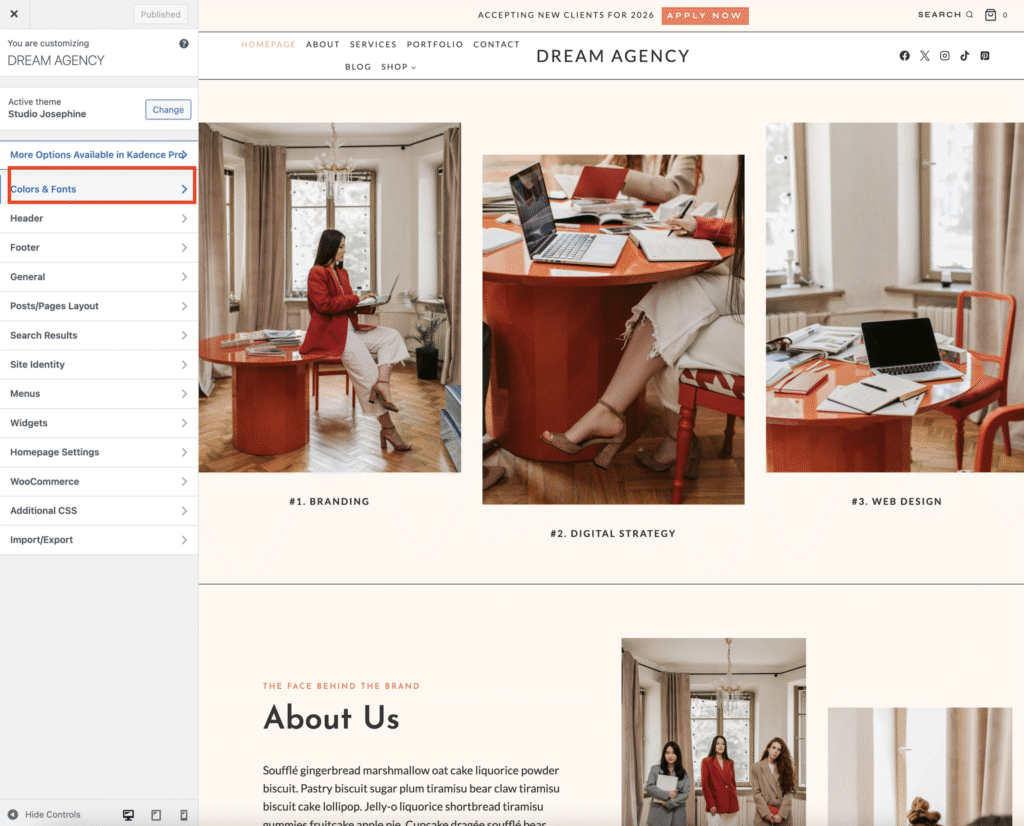
Click on Colors & Fonts.
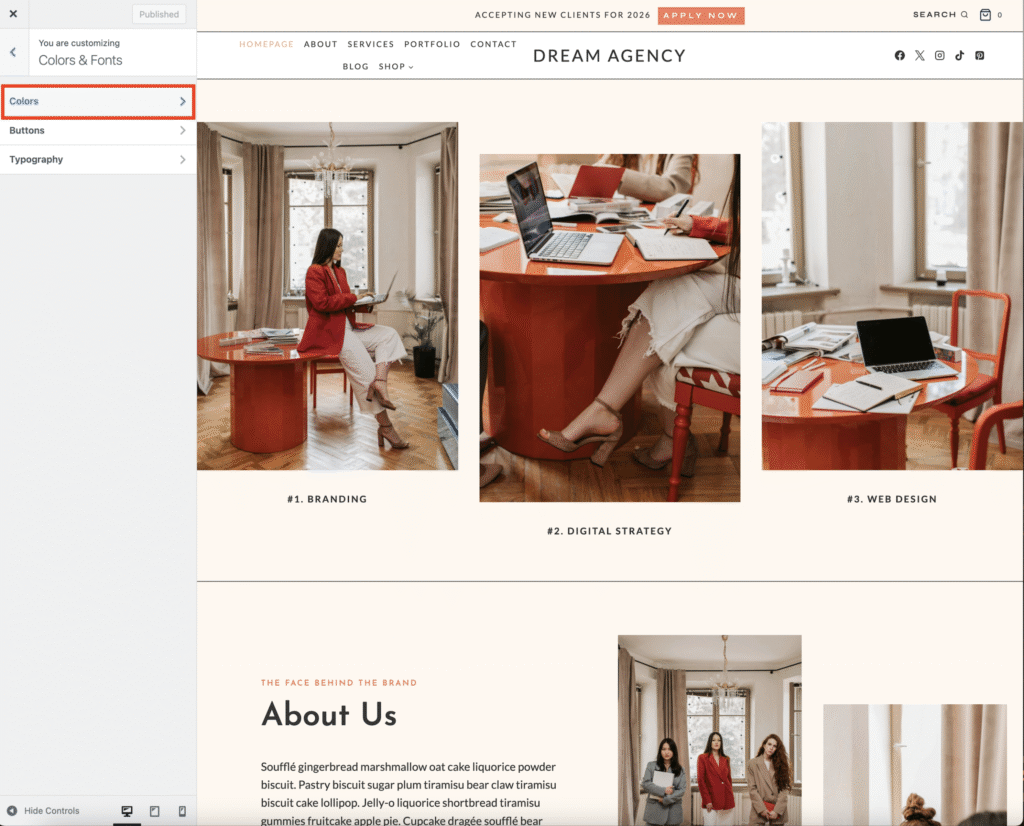
Then click on the Colors tab. This will open the global color palette for the website.
Click any color circle to open the color picker and replace it with your brand color. Once you’re happy with your palette, click Publish to save.
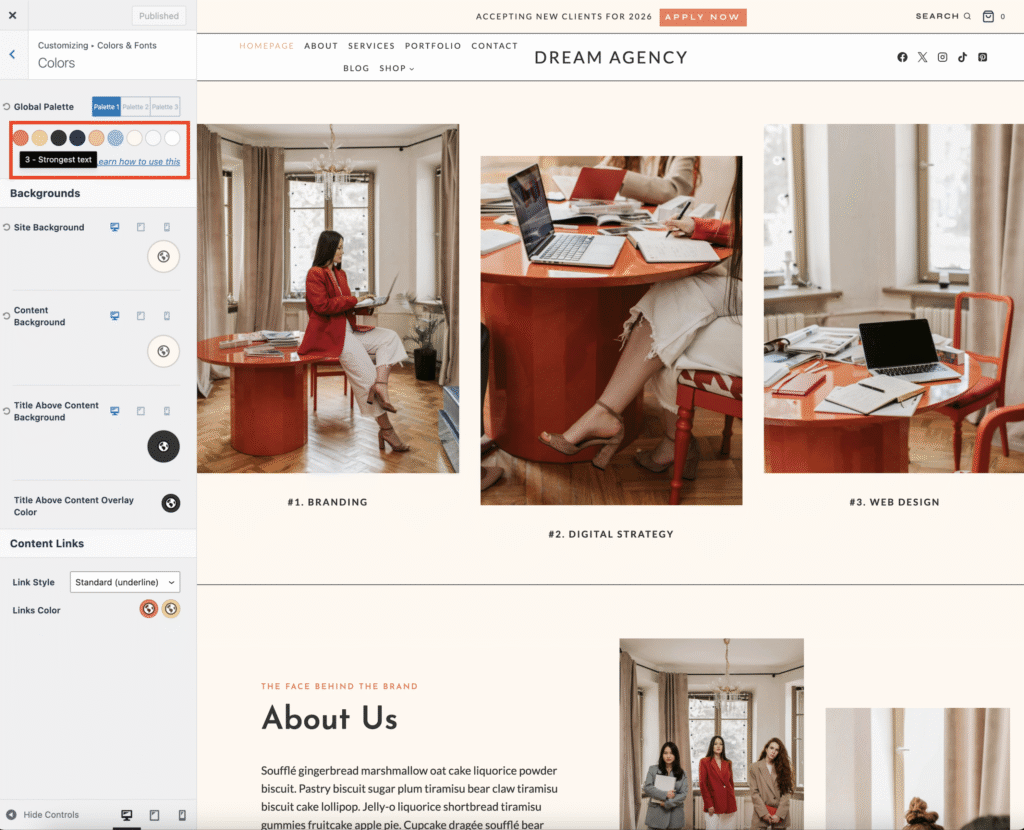
💡 Tip: Keep your palette simple — choose one main color, one accent, and one neutral tone for a clean, modern look.
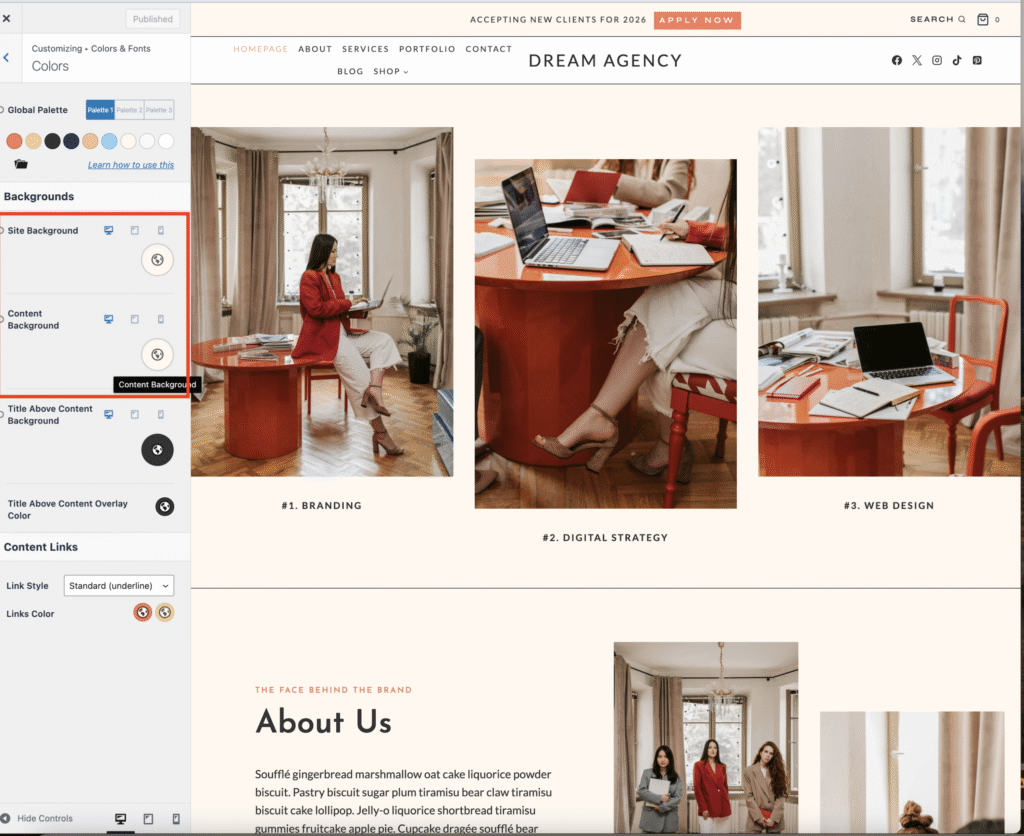
Changing Your Website Background:
In the same Colors & Fonts section, you can also change your site background and content background colors. Just scroll down and click on Site Background or Content Background, then select your desired color directly from your global palette or choose a custom shade.
Changing Your Link Colors:
You can also customize your link colors in the same section.
Scroll down to find Link Color — you’ll see two options:
• Initial Color: This is the color your visitors see by default.
• Hover Color: This is the color that appears when someone moves their mouse over the link.
Don’t forget to click publish to save all your changes.