Before You Get Started:
Update WordPress and plugins Make sure your site is running the latest version of WordPress and all plugins are updated. If you have an established site with content, I recommend creating a backup first.
If you’re using the “Classic Editor” plugin, deactivate it. Kadence only works with the block editor.
Established sites: The importer adds demo blog posts. Pause any RSS-to-email feeds before importing, then delete the demo posts and restart your feed.
How to Install The Theme and Import Demo Content:
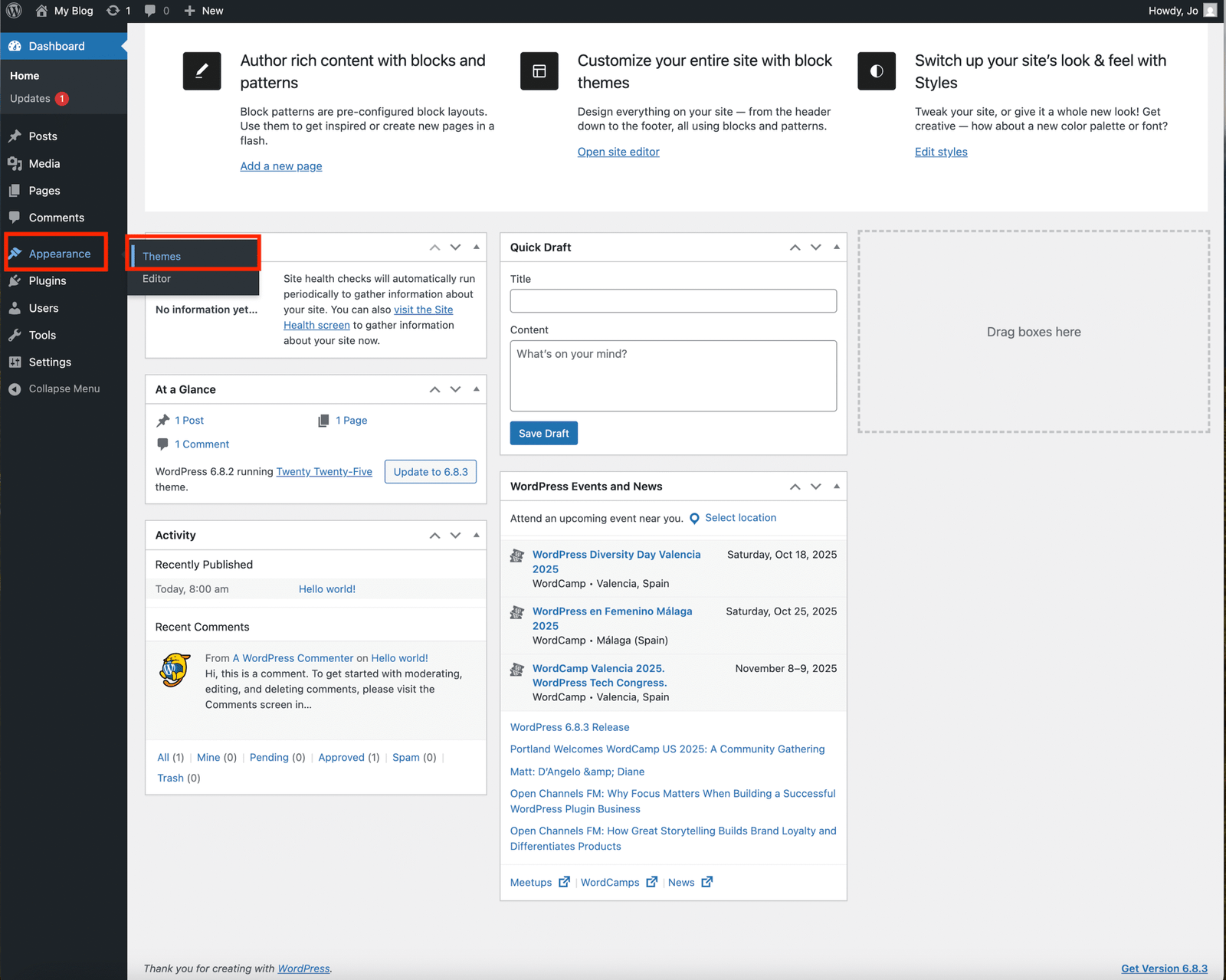
Go to your WordPress dashboard and scroll down to Appearance then themes.
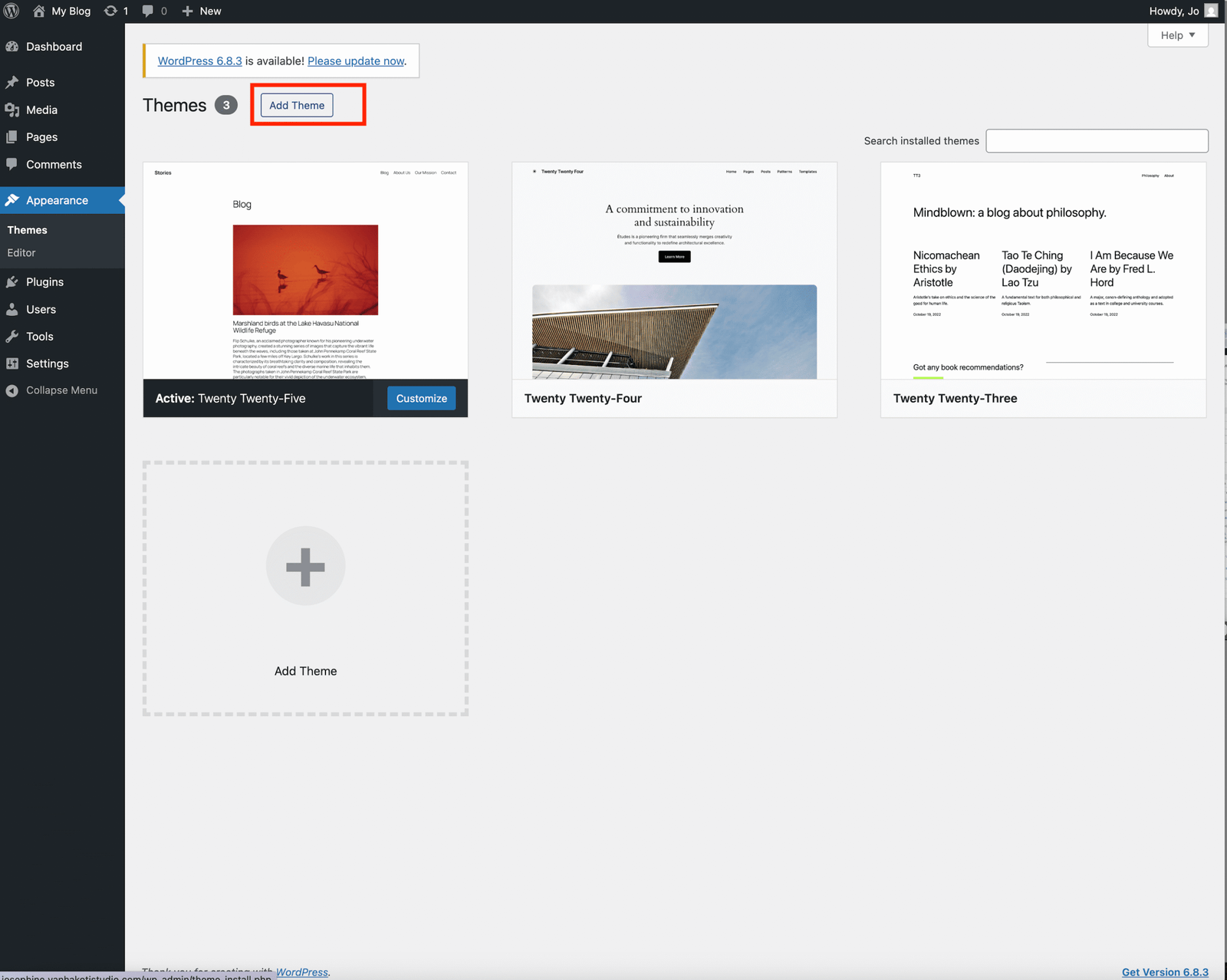
Click Add Theme at the top of the page.
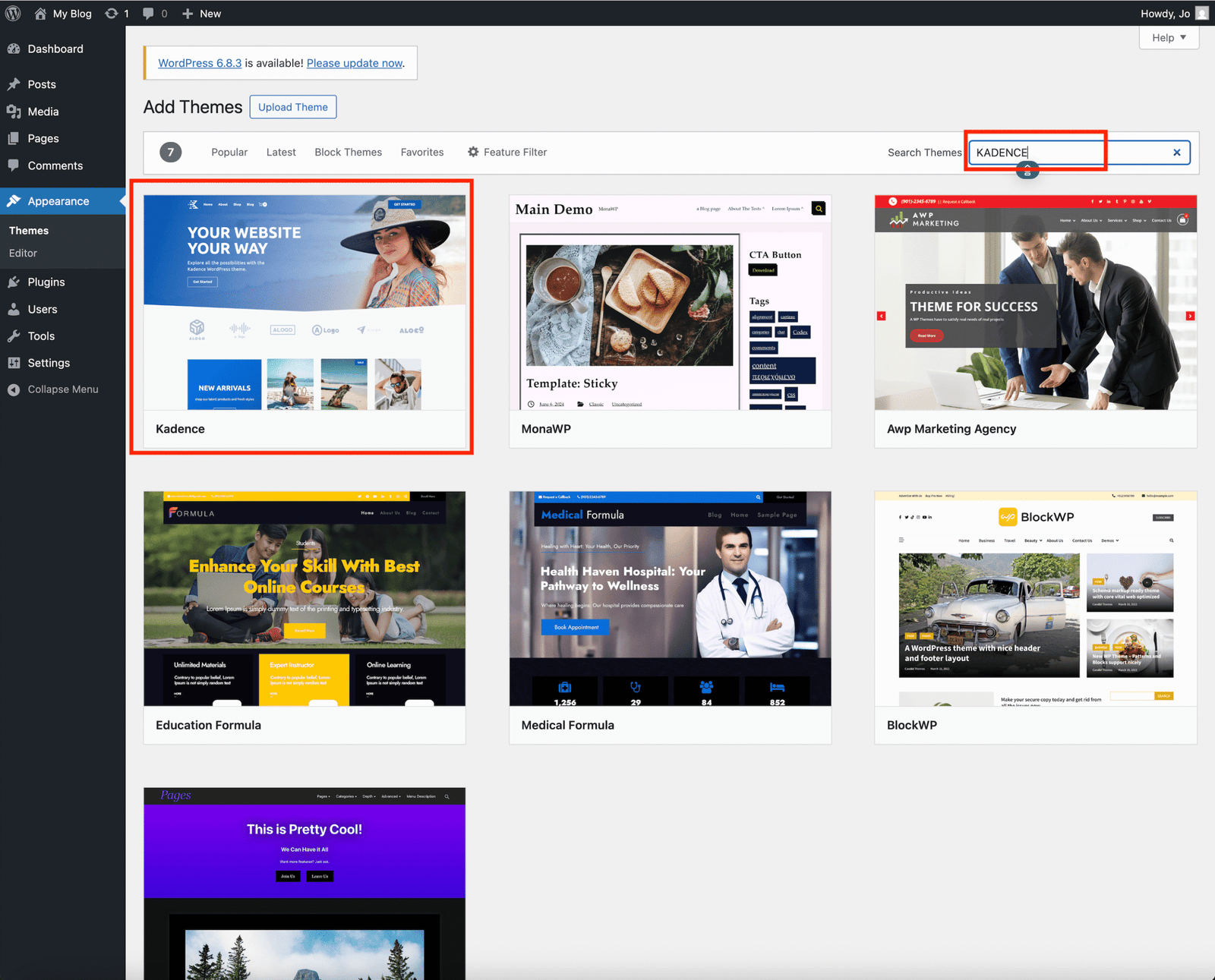
In the search bar, type Kadence, then click install. Once Installed click Activate.
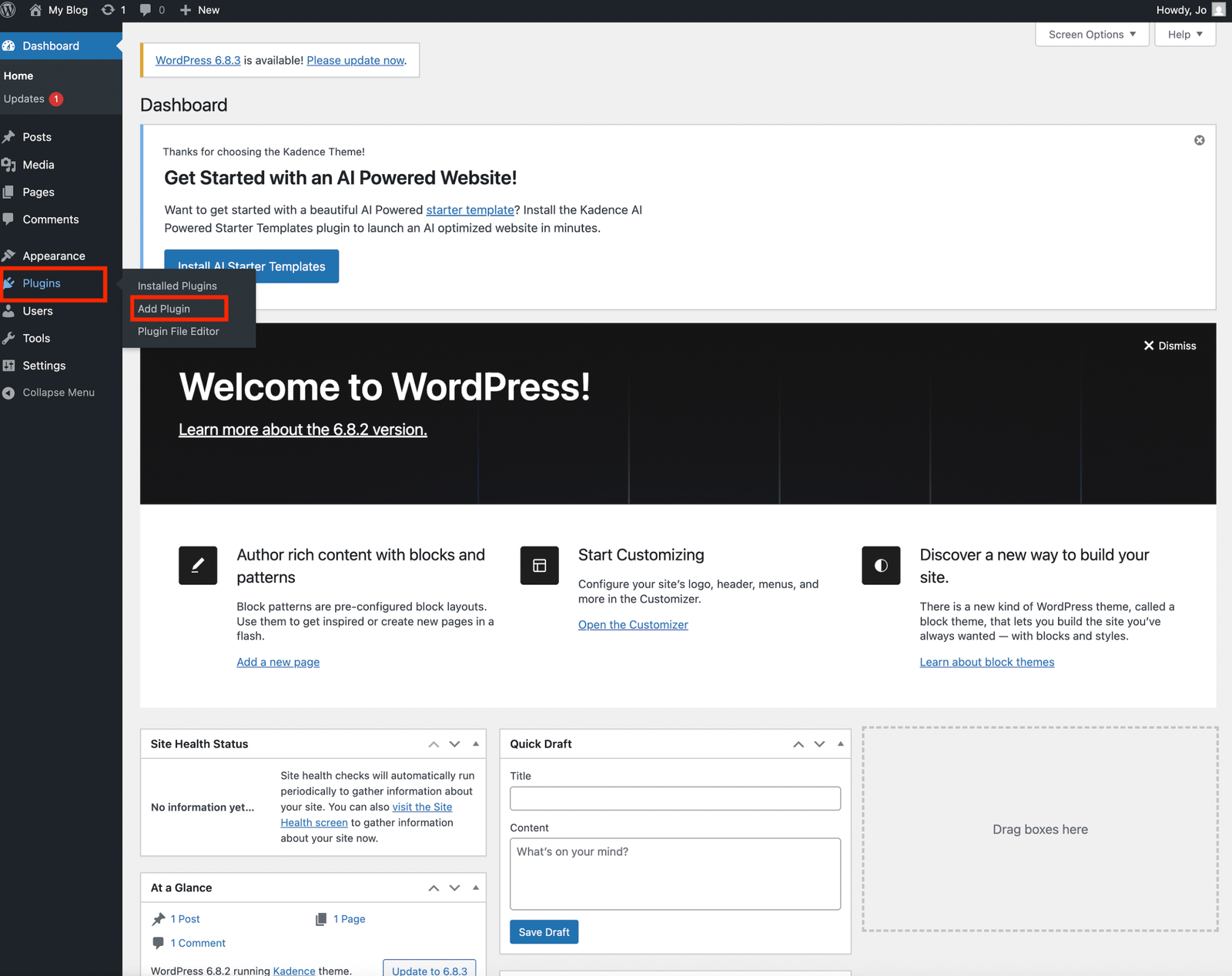
Go back to the Dashboard, then navigate to Plugins and Click Add Plugin.
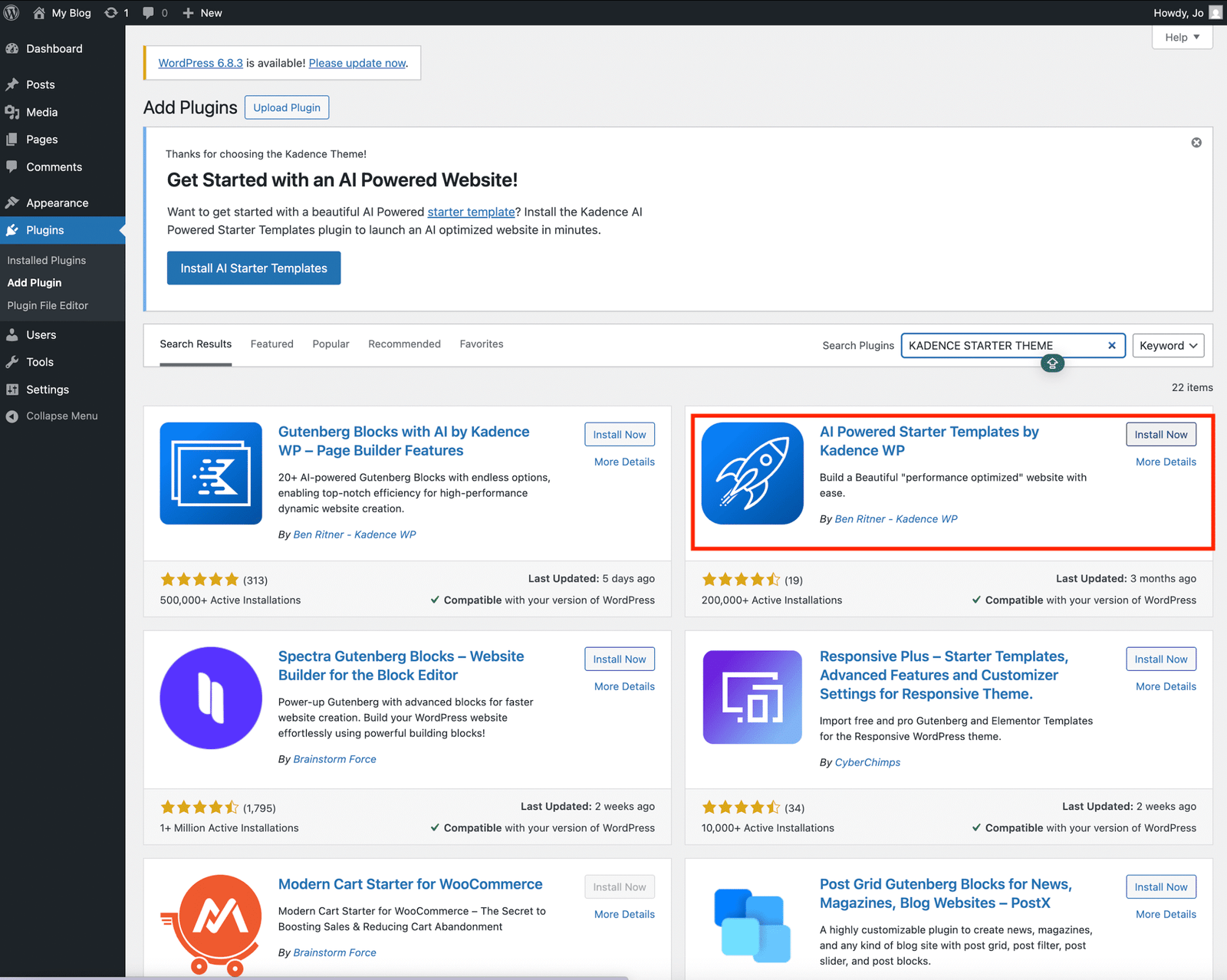
In the search bar ,type Kadence starter theme (highlighted in pictures), then click install and activate
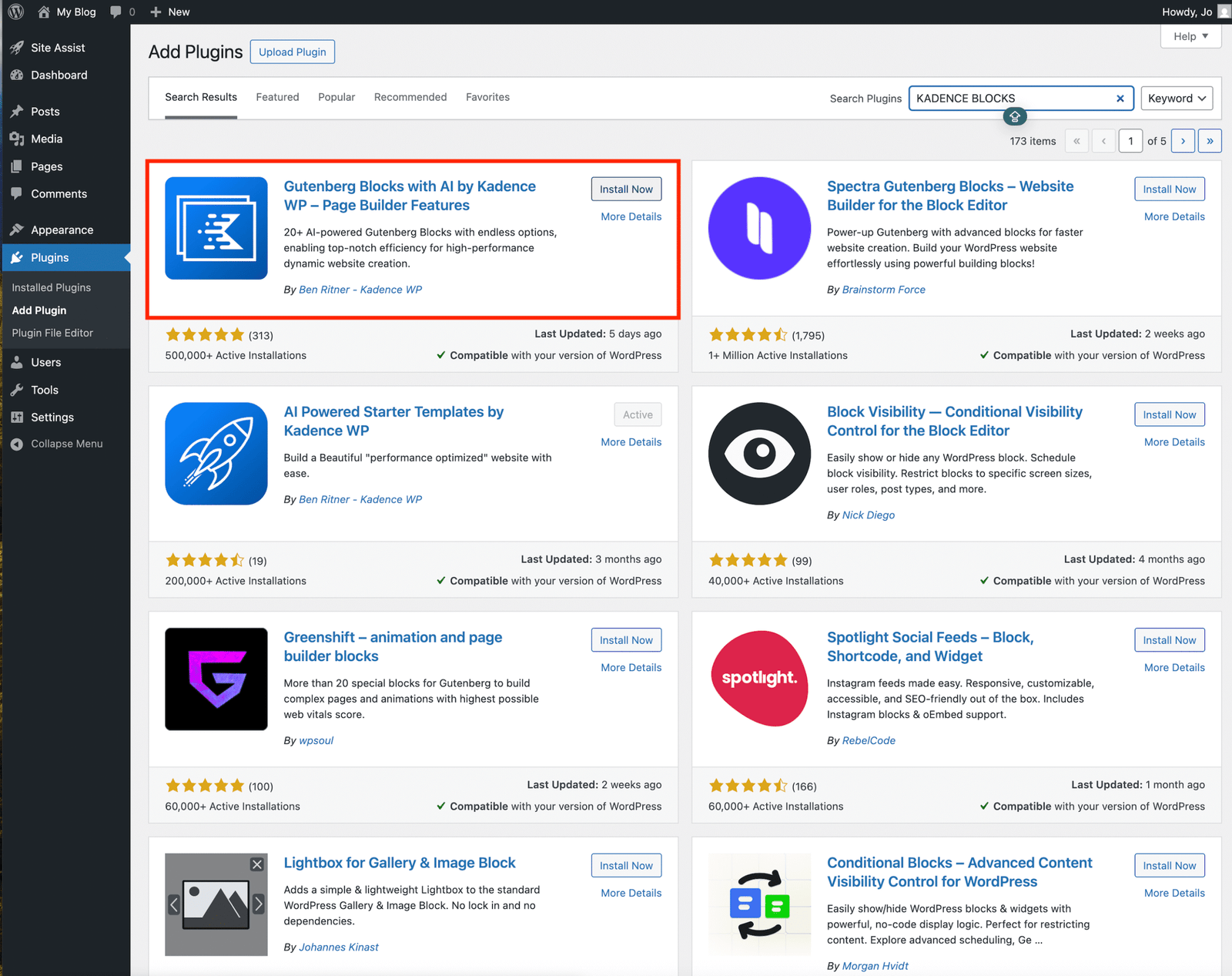
In the same section, search for Kadence Starter Blocks , then click Install and Activate.(highlighted in pictures).
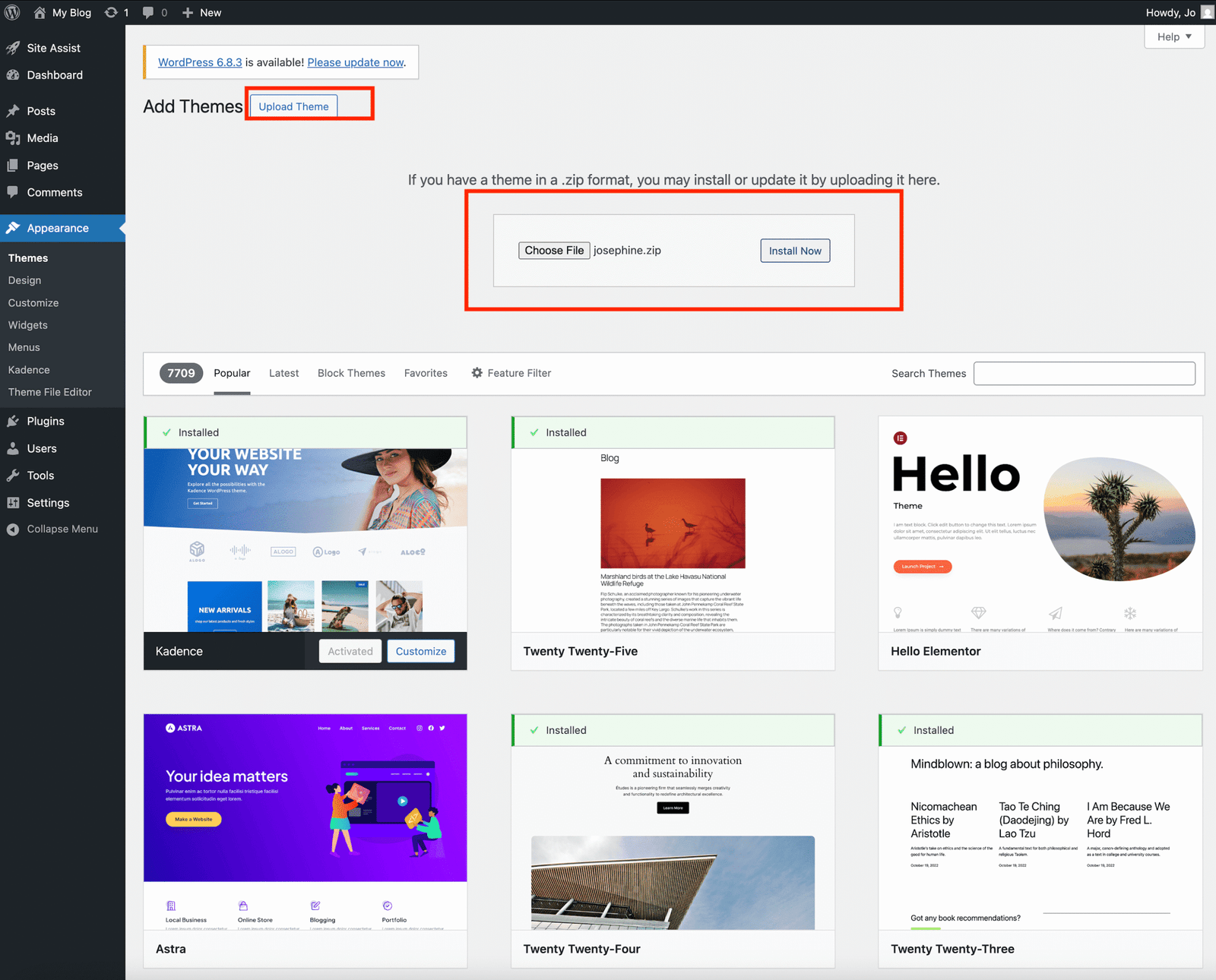
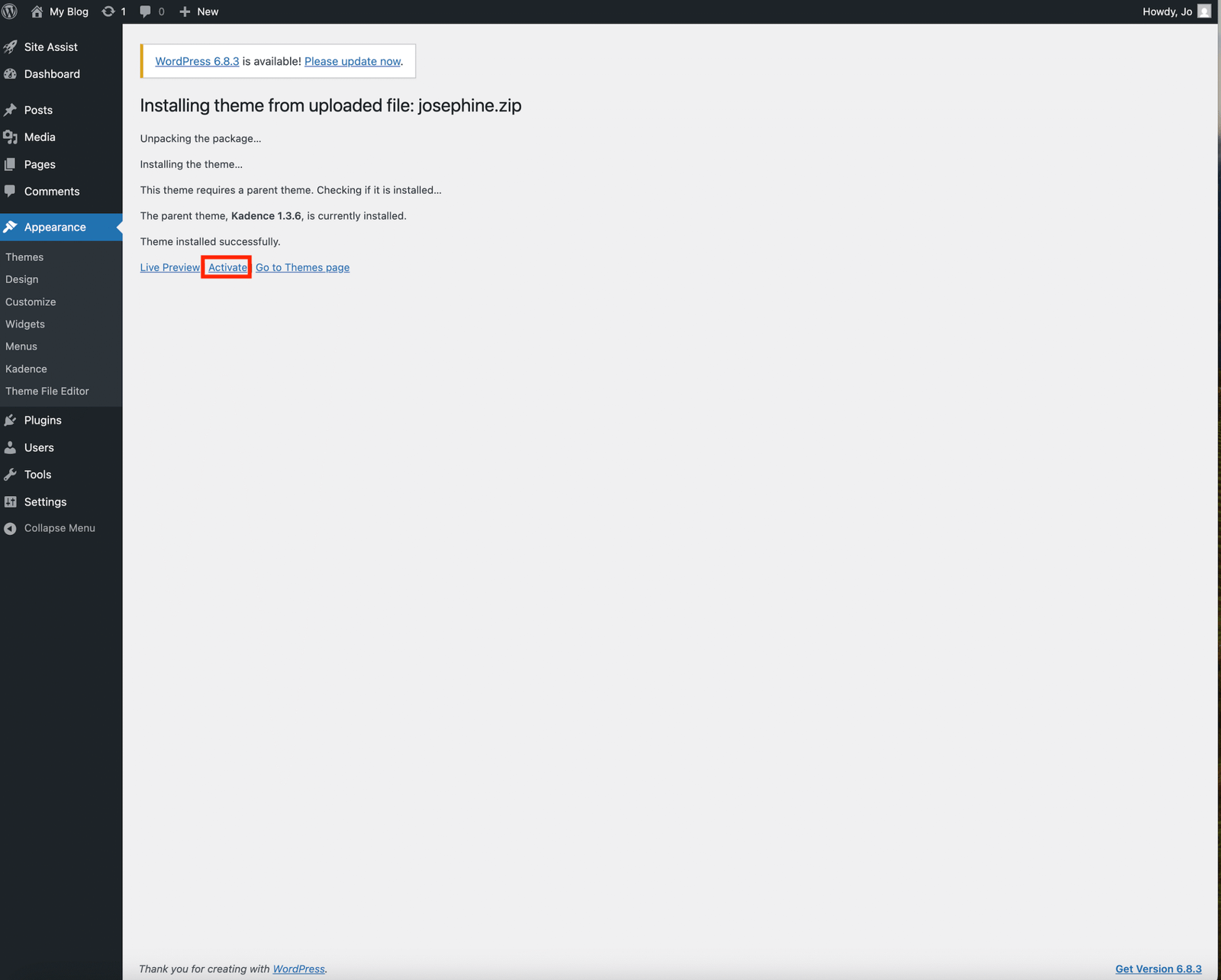
Go back to Appearance → Themes. Click the Upload Theme button at the top of the page. Select the theme zip file from your computer ( find this from the zip file you downloaded after purchase), for (tutorial purposes I am using thejosephine.zip theme) then click Install.
Activate the theme after installation.
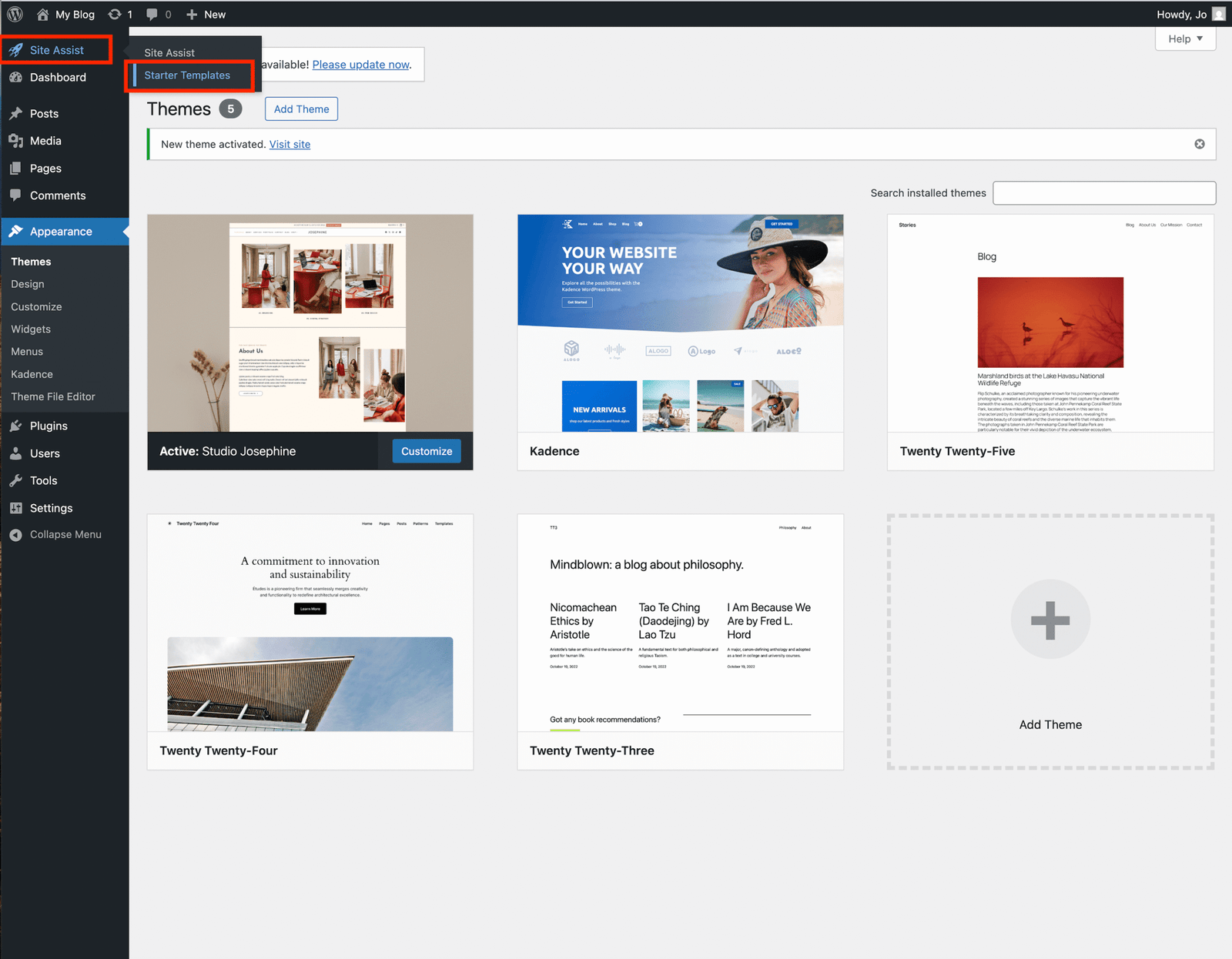
Next Scroll up on the dashboard, and hover over Site Assist, and click Starter Templates.
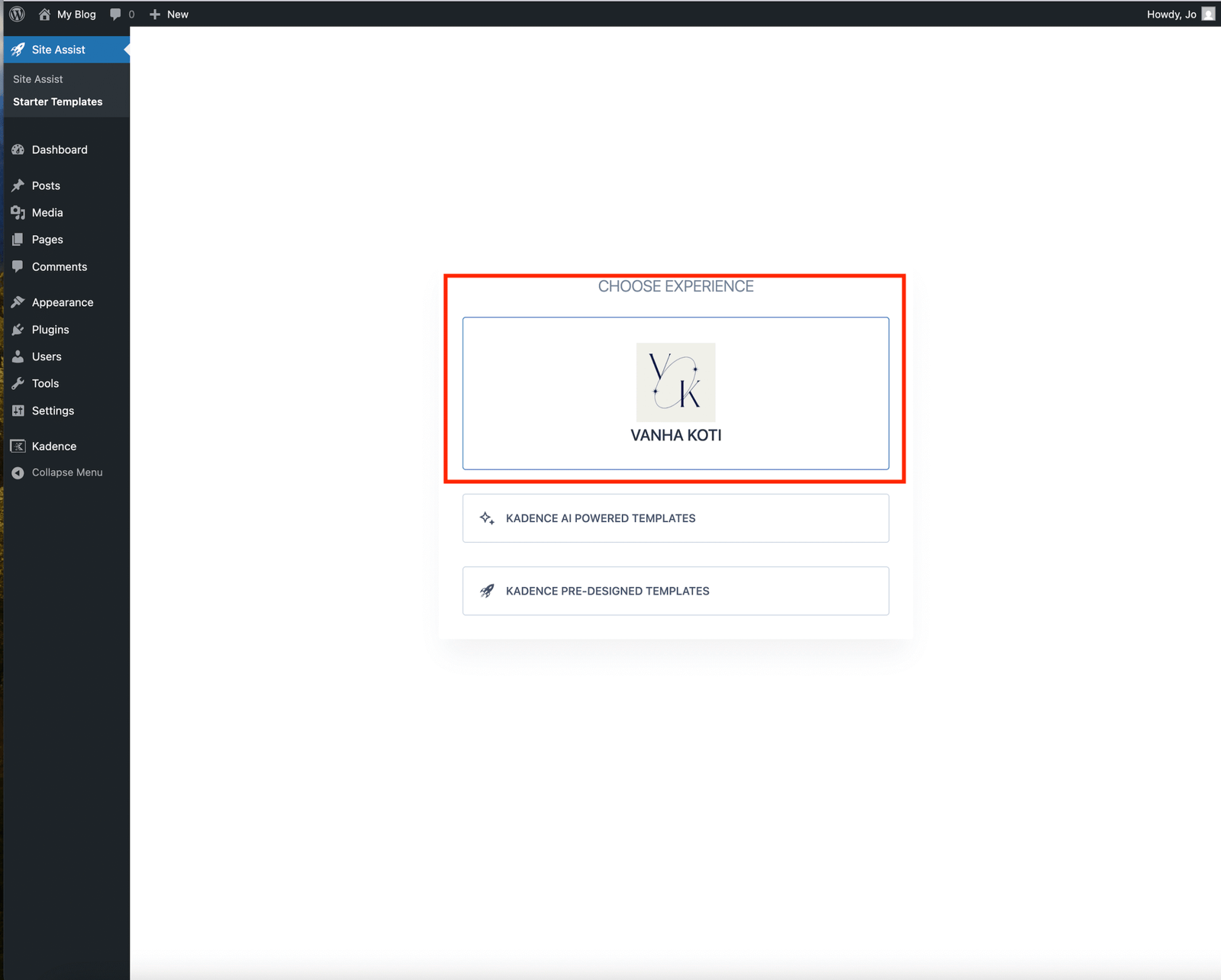
Click on VANHA KOTI in the choose your experience page.
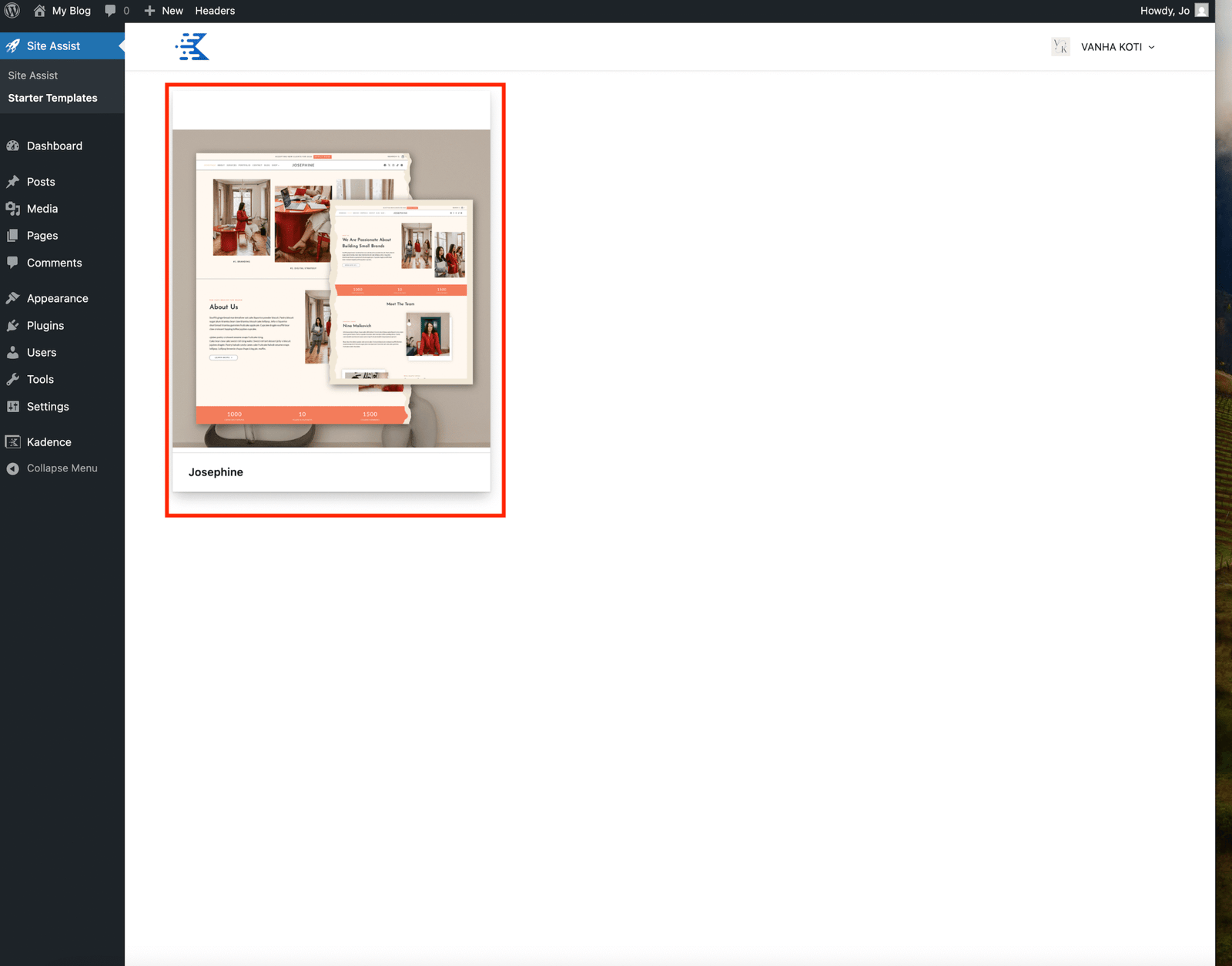
Click on the template once the page opens to begin importing the theme to your website.
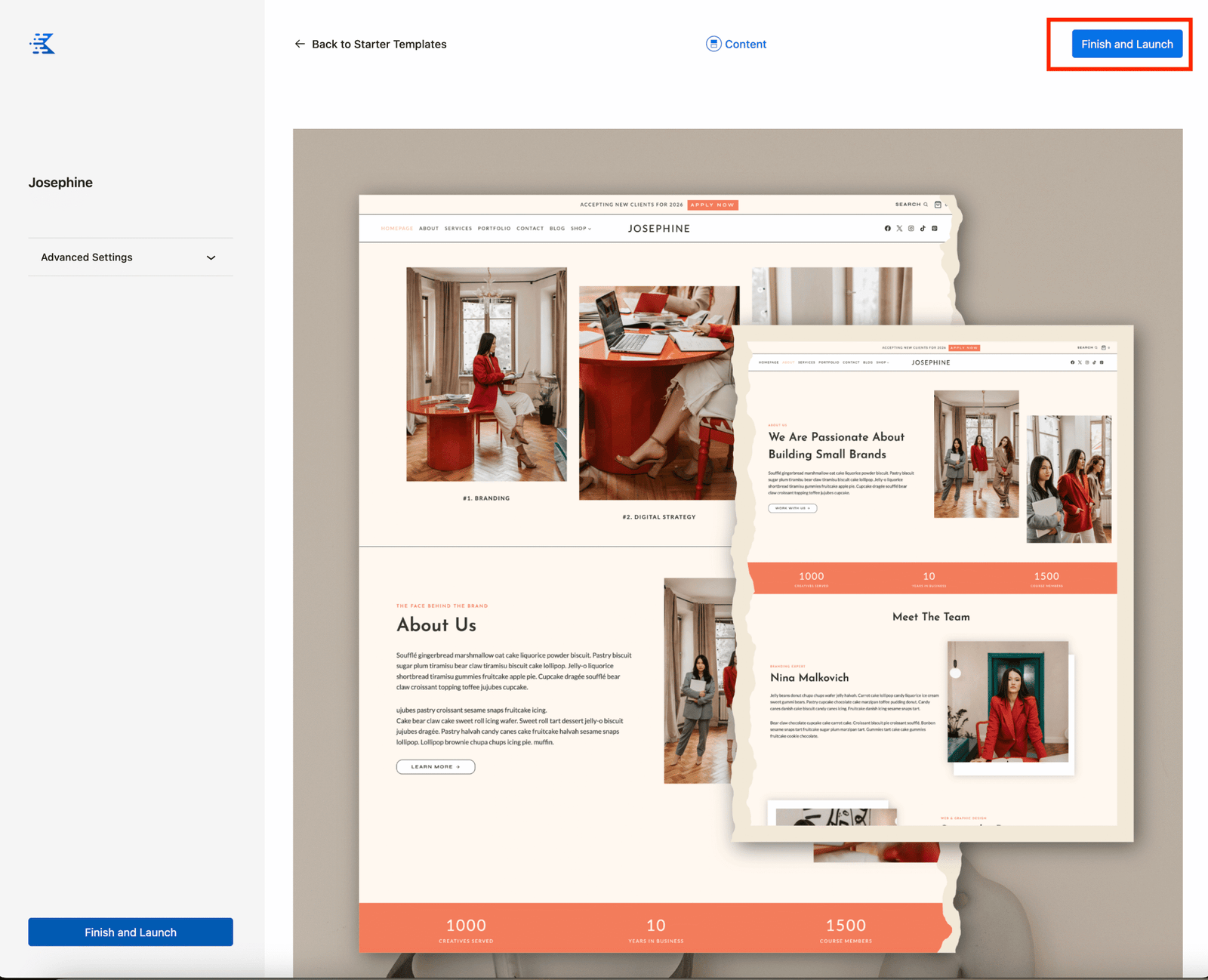
Click the Finish and Launch button..
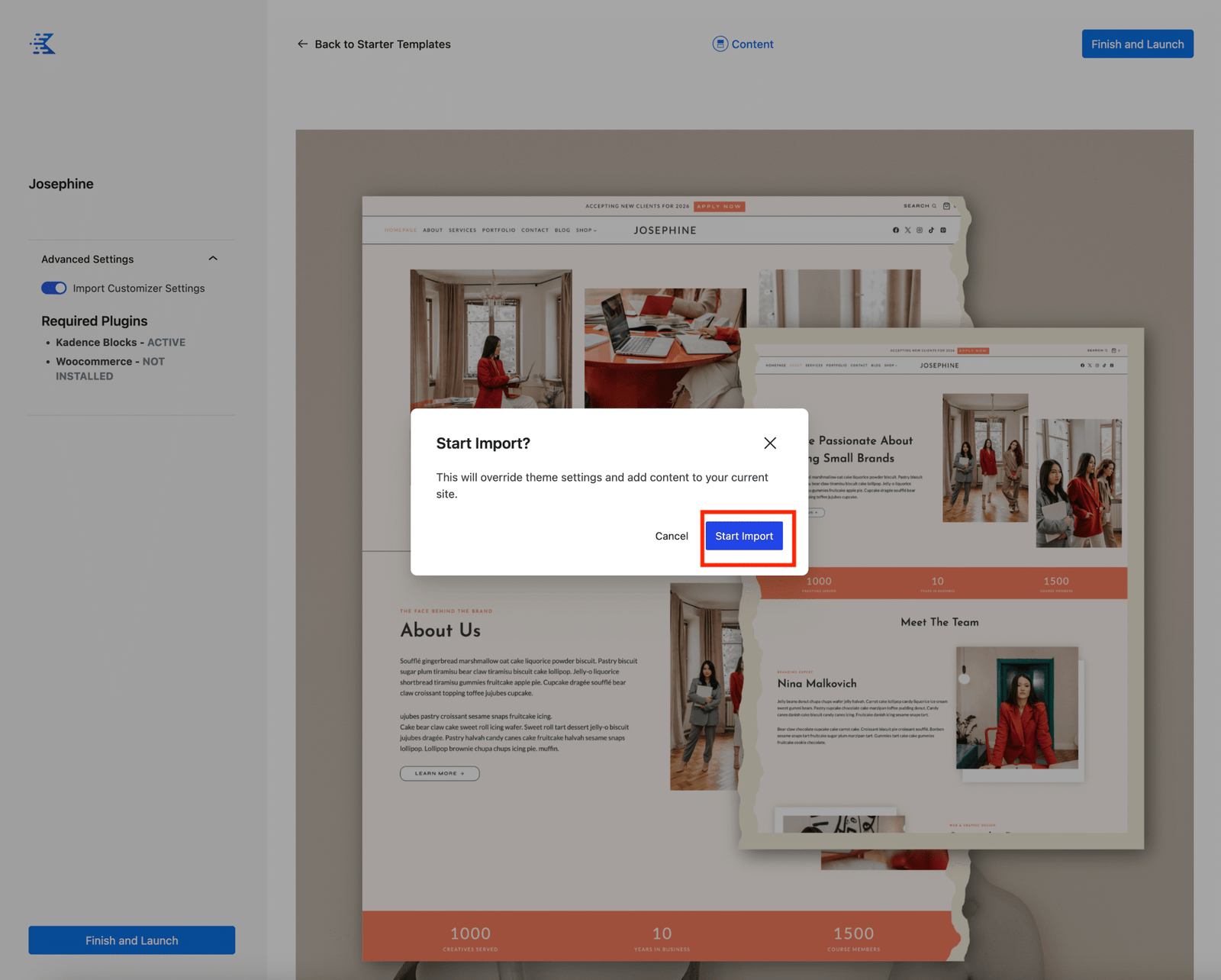
Then click Start Import to begin importing the demo content.
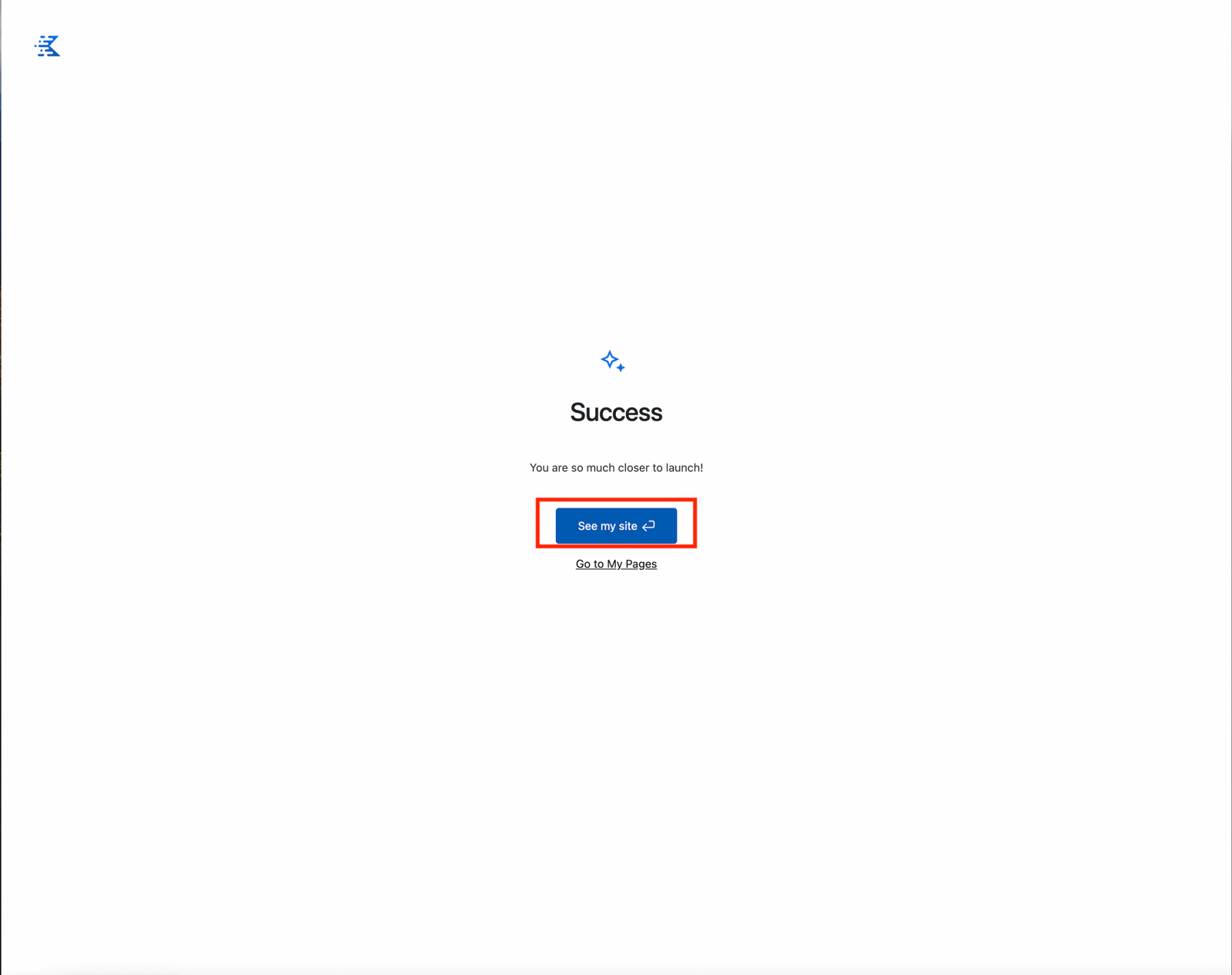
Once the import is complete, click See My Site to view your new website.