Skip to content

VANHA KOTI STUDIO

  • THEME SET UP & TUTORIALS
  • Submit A Ticket
VANHA KOTI STUDIO

Getting Started

1
  • Install Your Theme and Import Demo Content

Niina

13
  • Install Your Theme and Import Demo Content
  • Changing Website Colors
  • Changing the Logo
  • Changing Fonts
  • Styling Your Buttons
  • Editing Newsletter Form
  • Editing Shop My Favs / Affiliate Links Section
  • Editing and Customizing Menu
  • Editing The Footer
  • Customizing Blog Sidebar
  • How to Edit Blog Category Index
  • Editing Text, Replacing Images and Updating Button Links
  • Editing Header Section

Tilda

10
  • Install Your Theme and Import Demo Content
  • Changing Website Colors
  • Changing the Logo
  • Changing Fonts
  • Styling Your Buttons
  • Editing Newsletter Form
  • Editing and Customizing Menu
  • Editing The Footer
  • Editing Text, Replacing Images and Updating Button Links
  • Editing Header Section

Niina Lifestye

13
  • Install Your Theme and Import Demo Content
  • Changing Website Colors
  • Changing the Logo
  • Changing Fonts
  • Styling Your Buttons
  • Editing Newsletter Form
  • Editing Shop My Favs / Affiliate Links Section
  • Editing and Customizing Menu
  • Editing The Footer
  • Customizing Blog Sidebar
  • How to Edit Blog Category Index
  • Editing Text, Replacing Images and Updating Button Links
  • Editing Header Section

Susan

13
  • Install Your Theme and Import Demo Content
  • Changing Website Colors
  • Changing the Logo
  • Changing Fonts
  • Styling Your Buttons
  • Editing Newsletter Form
  • Editing Shop My Favs / Affiliate Links Section
  • Editing and Customizing Menu
  • Editing The Footer
  • Customizing Blog Sidebar
  • How to Edit Blog Category Index
  • Editing Text, Replacing Images and Updating Button Links
  • Editing Header Section

Enni

13
  • Install Your Theme and Import Demo Content
  • Changing Website Colors
  • Changing the Logo
  • Changing Fonts
  • Styling Your Buttons
  • Editing Newsletter Form
  • Editing Shop My Favs / Affiliate Links Section
  • Editing and Customizing Menu
  • Editing The Footer
  • Customizing Blog Sidebar
  • How to Edit Blog Category Index
  • Editing Text, Replacing Images and Updating Button Links
  • Editing Header Section

Sohvi

10
  • Install Your Theme and Import Demo Content
  • Changing Website Colors
  • Changing the Logo
  • Changing Fonts
  • Styling Your Buttons
  • Editing Newsletter Form
  • Editing and Customizing Menu
  • Editing The Footer
  • Editing Text, Replacing Images and Updating Button Links
  • Editing Header Section

Sohvi Dark

9
  • Install Your Theme and Import Demo Content
  • Changing Website Colors
  • Changing the Logo
  • Changing Fonts
  • Styling Your Buttons
  • Editing and Customizing Menu
  • Editing The Footer
  • Editing Text, Replacing Images and Updating Button Links
  • Editing Header Section

Sohvi Blog

13
  • Install Your Theme and Import Demo Content
  • Changing Website Colors
  • Changing the Logo
  • Changing Fonts
  • Styling Your Buttons
  • Editing Shop My Favs / Affiliate Links Section
  • Editing and Customizing Menu
  • Editing The Footer
  • Customizing Blog Sidebar
  • How to Edit Blog Category Index
  • Editing Text, Replacing Images and Updating Button Links
  • Editing Header Section
  • Editing Blog Category Tabs

Inkeri

11
  • Install Your Theme and Import Demo Content
  • Changing Website Colors
  • Changing the Logo
  • Changing Fonts
  • Styling Your Buttons
  • Editing and Customizing Menu
  • Editing The Footer
  • Editing Text, Replacing Images and Updating Button Links
  • Editing Header Section
  • Uploading Custom Fonts
  • Converting Fonts From OTF or TTF Files to WOFF

Hanna

10
  • Install Your Theme and Import Demo Content
  • Changing Website Colors
  • Changing the Logo
  • Changing Fonts
  • Styling Your Buttons
  • Editing and Customizing Menu
  • Editing The Footer
  • Editing Text, Replacing Images and Updating Button Links
  • Editing Header Section
  • Converting Fonts From OTF or TTF Files to WOFF

Aurora

15
  • Install Your Theme and Import Demo Content
  • Changing Website Colors
  • Changing the Logo
  • Changing Fonts
  • Styling Your Buttons
  • Editing Newsletter Form
  • Editing Shop My Favs / Affiliate Links Section
  • Editing and Customizing Menu
  • Editing The Footer
  • Customizing Blog Sidebar
  • Editing Text, Replacing Images and Updating Button Links
  • Editing Header Section
  • Editing Blog Category Tabs
  • Uploading Custom Fonts
  • Converting Fonts From OTF or TTF Files to WOFF

Meri

13
  • Install Your Theme and Import Demo Content
  • Changing Website Colors
  • Changing the Logo
  • Changing Fonts
  • Styling Your Buttons
  • Editing and Customizing Menu
  • Editing The Footer
  • Editing Text, Replacing Images and Updating Button Links
  • Editing Header Section
  • Uploading Custom Fonts
  • Converting Fonts From OTF or TTF Files to WOFF
  • Duplicating Single Portfolio Page
  • Editing Homepage Services Section

Alma

13
  • Install Your Theme and Import Demo Content
  • Changing Website Colors
  • Changing the Logo
  • Changing Fonts
  • Styling Your Buttons
  • Editing Shop My Favs / Affiliate Links Section
  • Editing and Customizing Menu
  • Customizing Blog Sidebar
  • Editing Text, Replacing Images and Updating Button Links
  • Editing Header Section
  • Editing Blog Category Tabs
  • Uploading Custom Fonts
  • Converting Fonts From OTF or TTF Files to WOFF

Lotta

5
  • Install Your Theme & Import Demo Content
  • Changing Colors & Fonts
  • Editing Text & Replacing Images
  • Uploading Custom Fonts
  • Uploading Logo & Favicon

Isla

5
  • Install Your Theme & Import Demo Content
  • Changing Colors & Fonts
  • Editing Text & Replacing Images
  • Uploading Custom Fonts
  • Uploading Logo & Favicon

Kiara Lifestyle

5
  • Install Your Theme & Import Demo Content
  • Changing Colors & Fonts
  • Editing Text & Replacing Images
  • Uploading Custom Fonts
  • Uploading Logo & Favicon
  • Home
  • support
  • Isla
  • Changing Colors & Fonts
View Categories

Changing Colors & Fonts

This tutorial will guide you through updating the global colors and fonts for your Elementor theme.

Table of Contents
  • Accessing Site Settings
  • Setting Colors
  • Setting Fonts
  • Exiting Site Settings

Accessing Site Settings


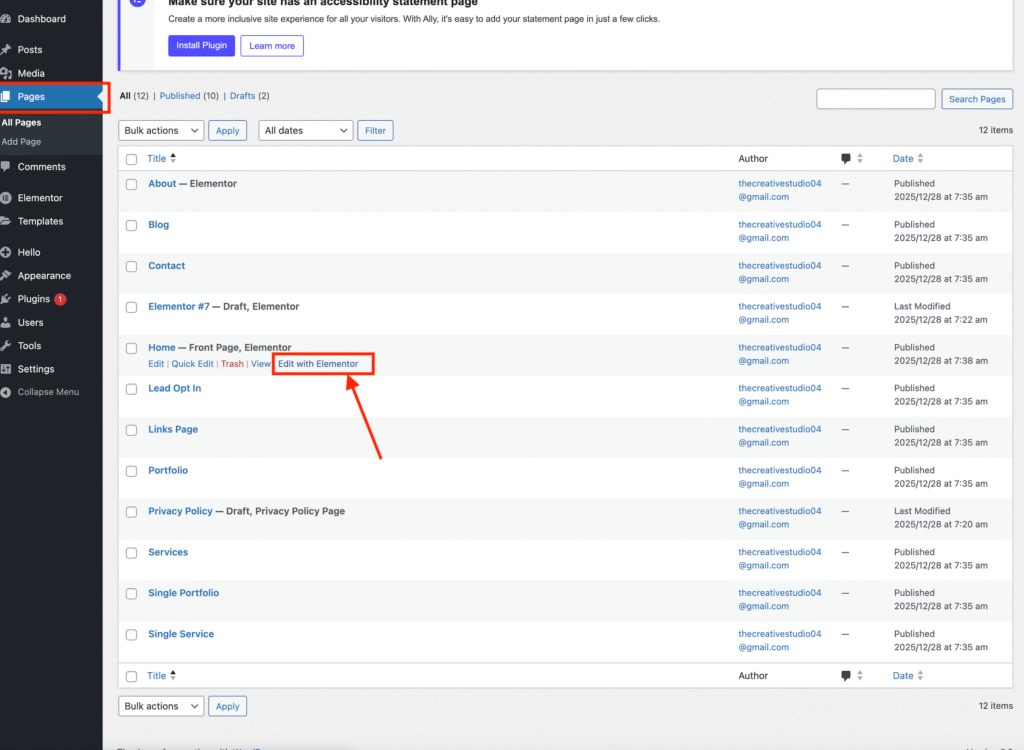
• From your WordPress dashboard, go to Pages.

Find the page you want to edit (for this tutorial, we’ll use the Home Page) and click Edit with Elementor.

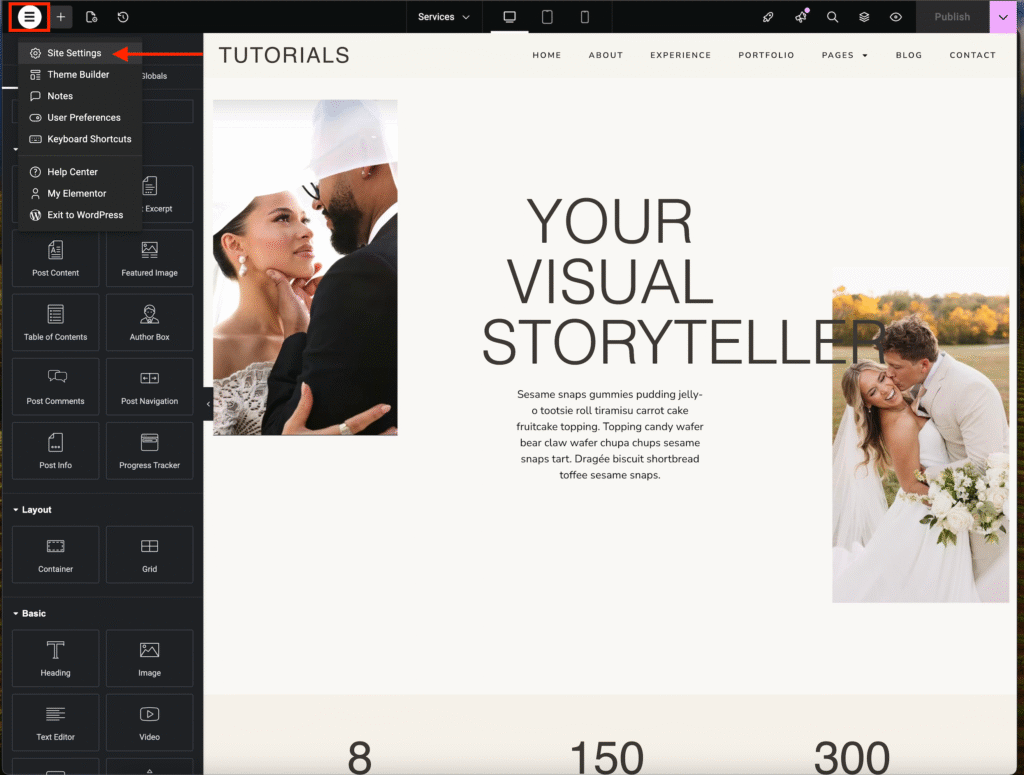
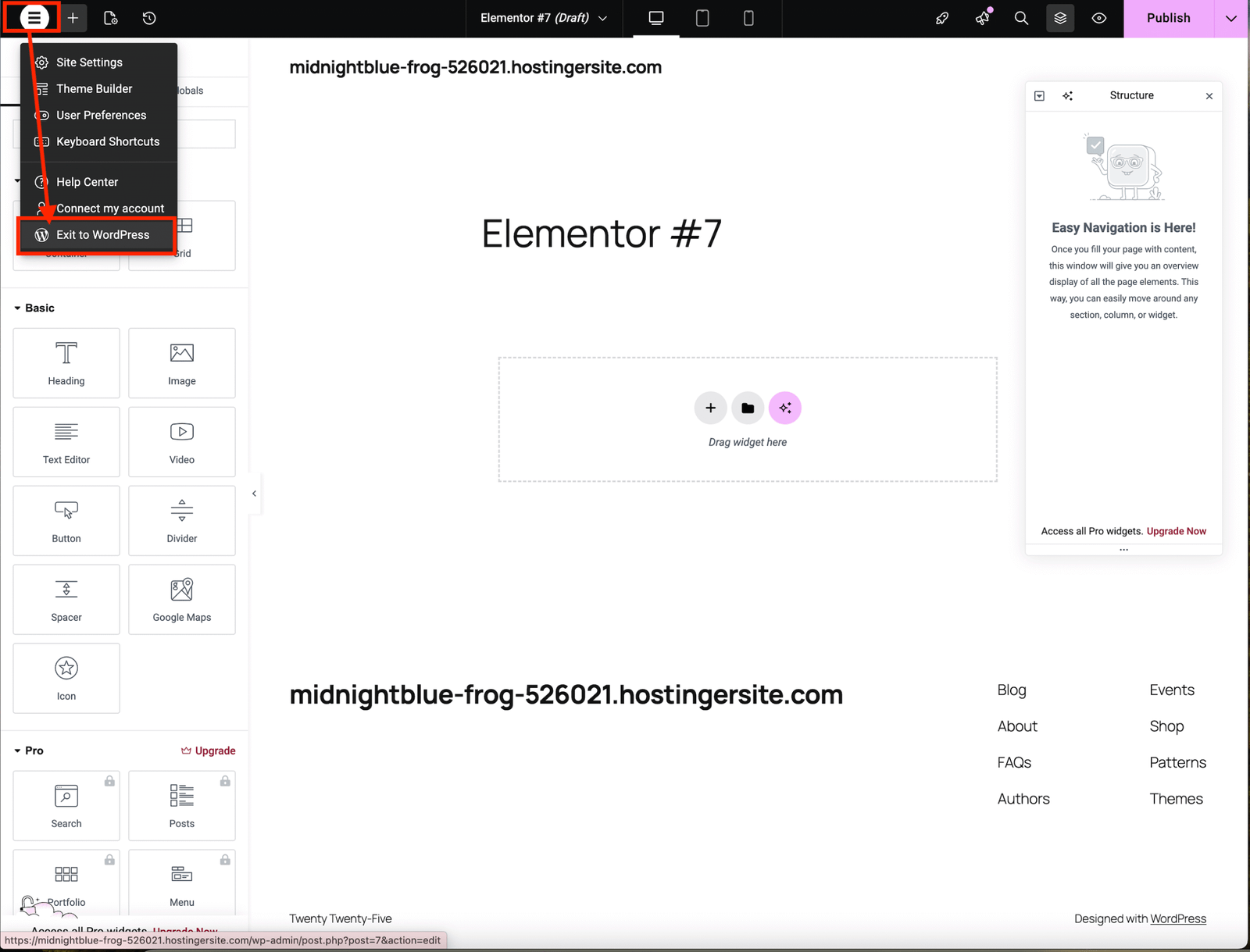
• In the Elementor editor, click the hamburger menu in the top-left corner and select Site Settings.
Setting Colors

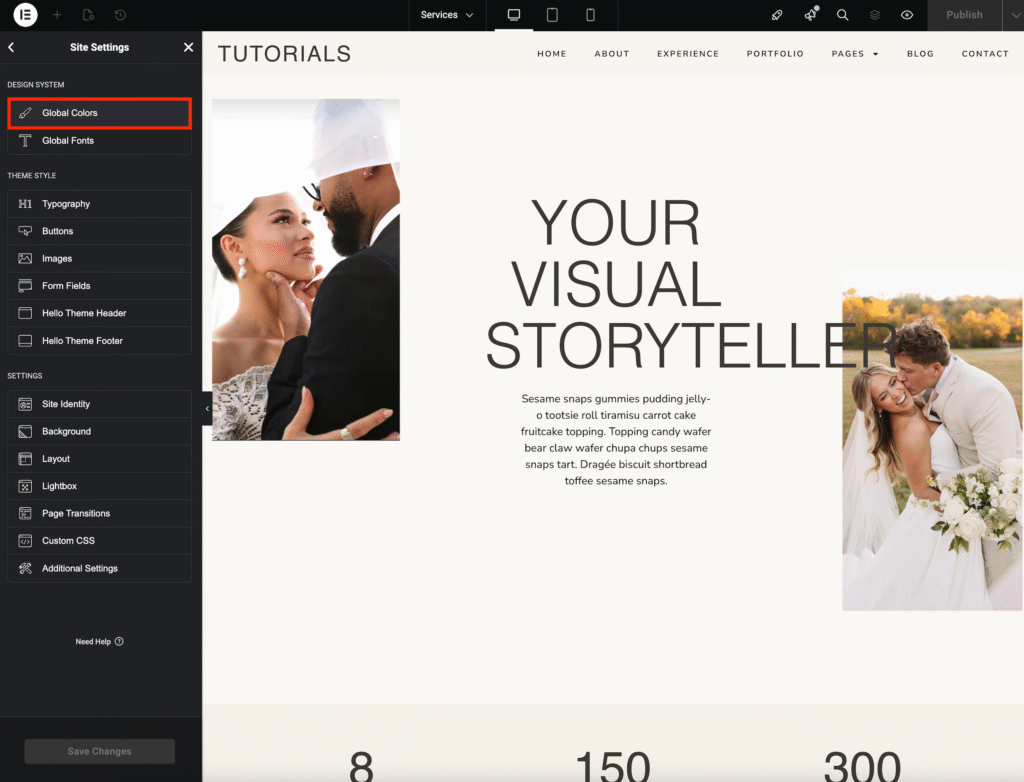
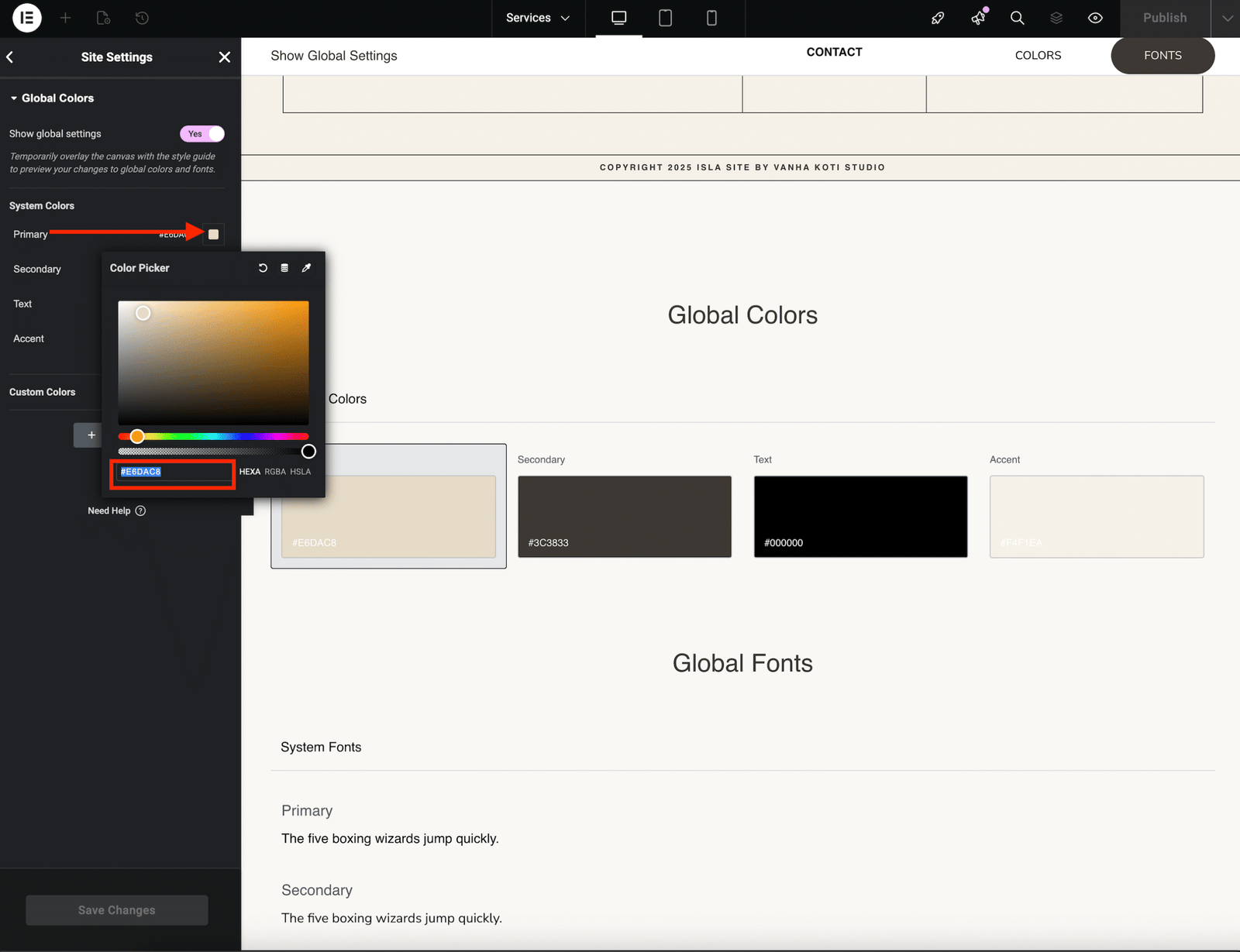
• Select Global Colors.

• Replace the existing colors with your own brand colors.
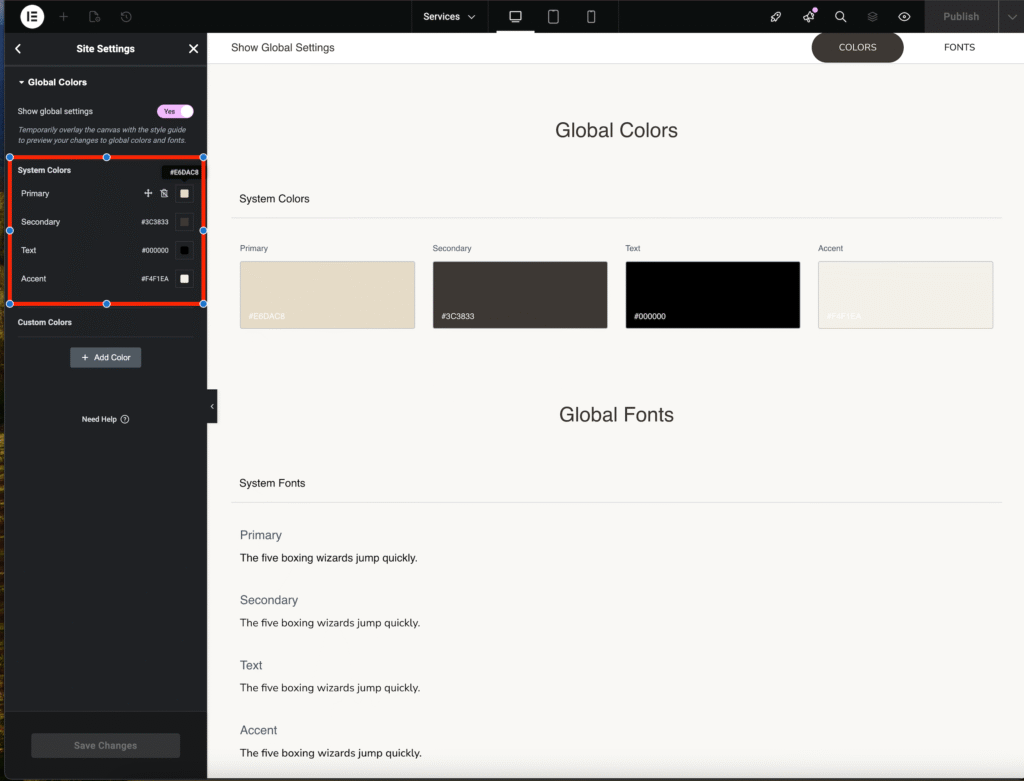

• Click on the color option you want to change and enter your color code.
• Repeat this step for all four color options, from Primary to Accent colors.
• Click Save Changes once you are finished.
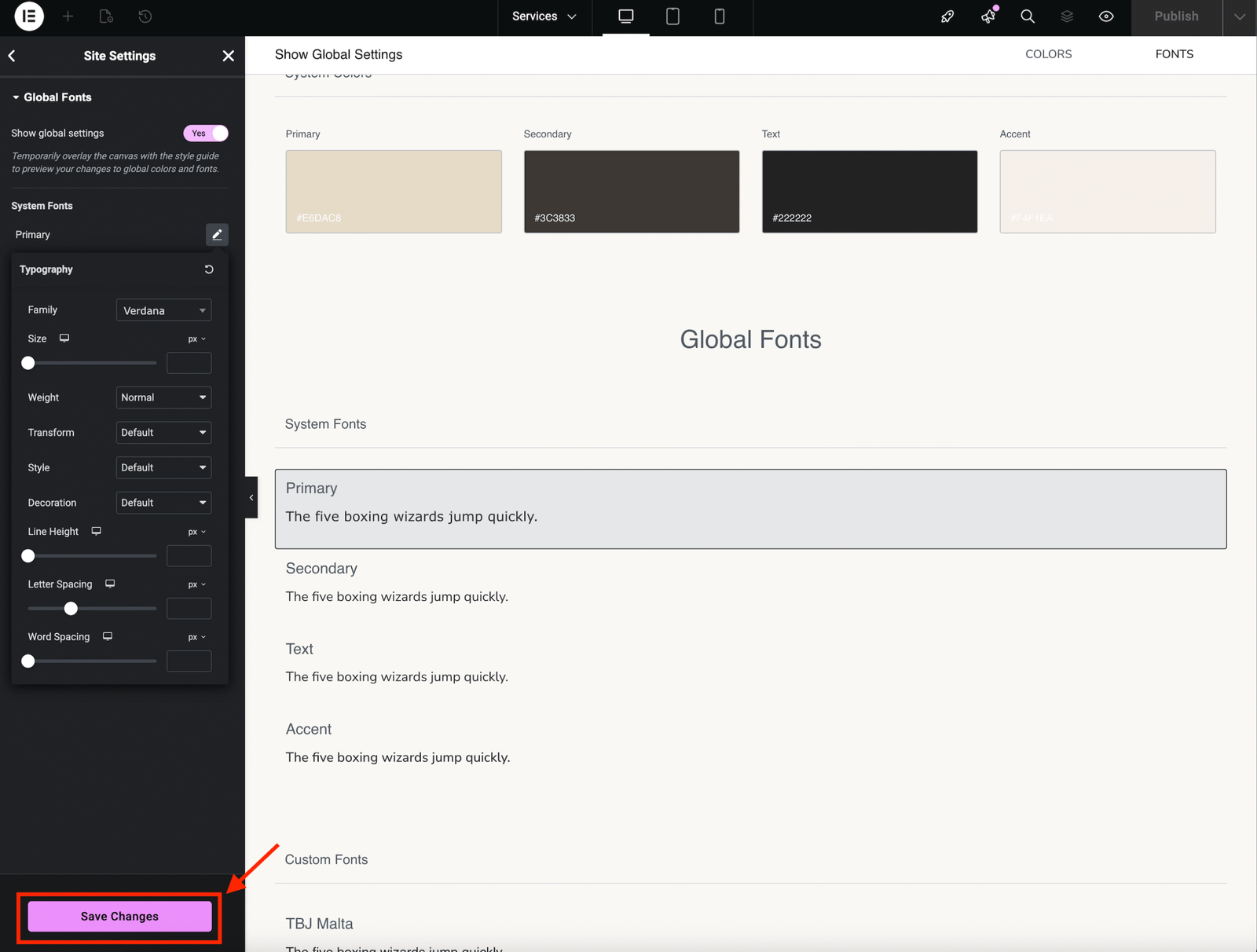
Setting Fonts


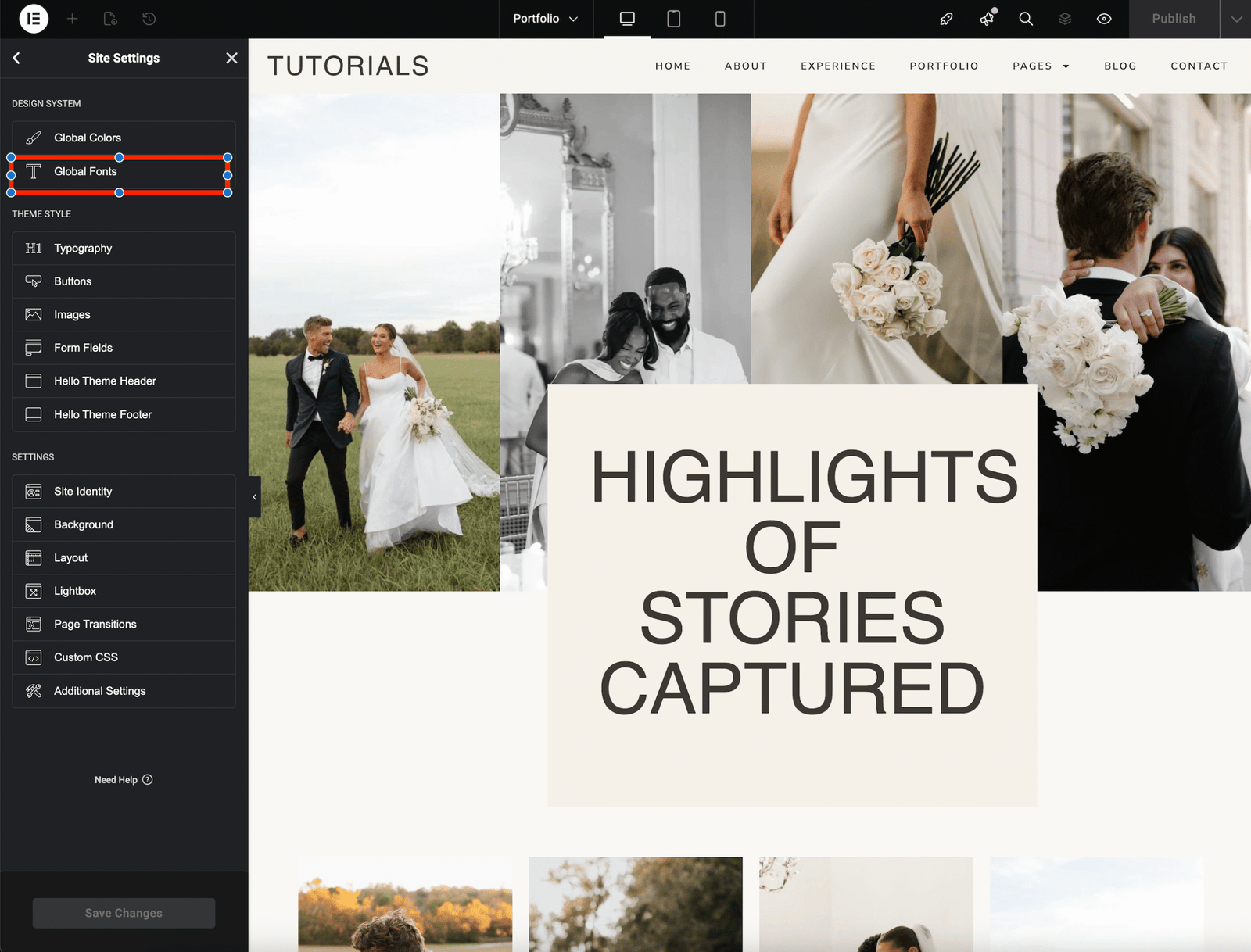
• From Site Settings, select Global Fonts.

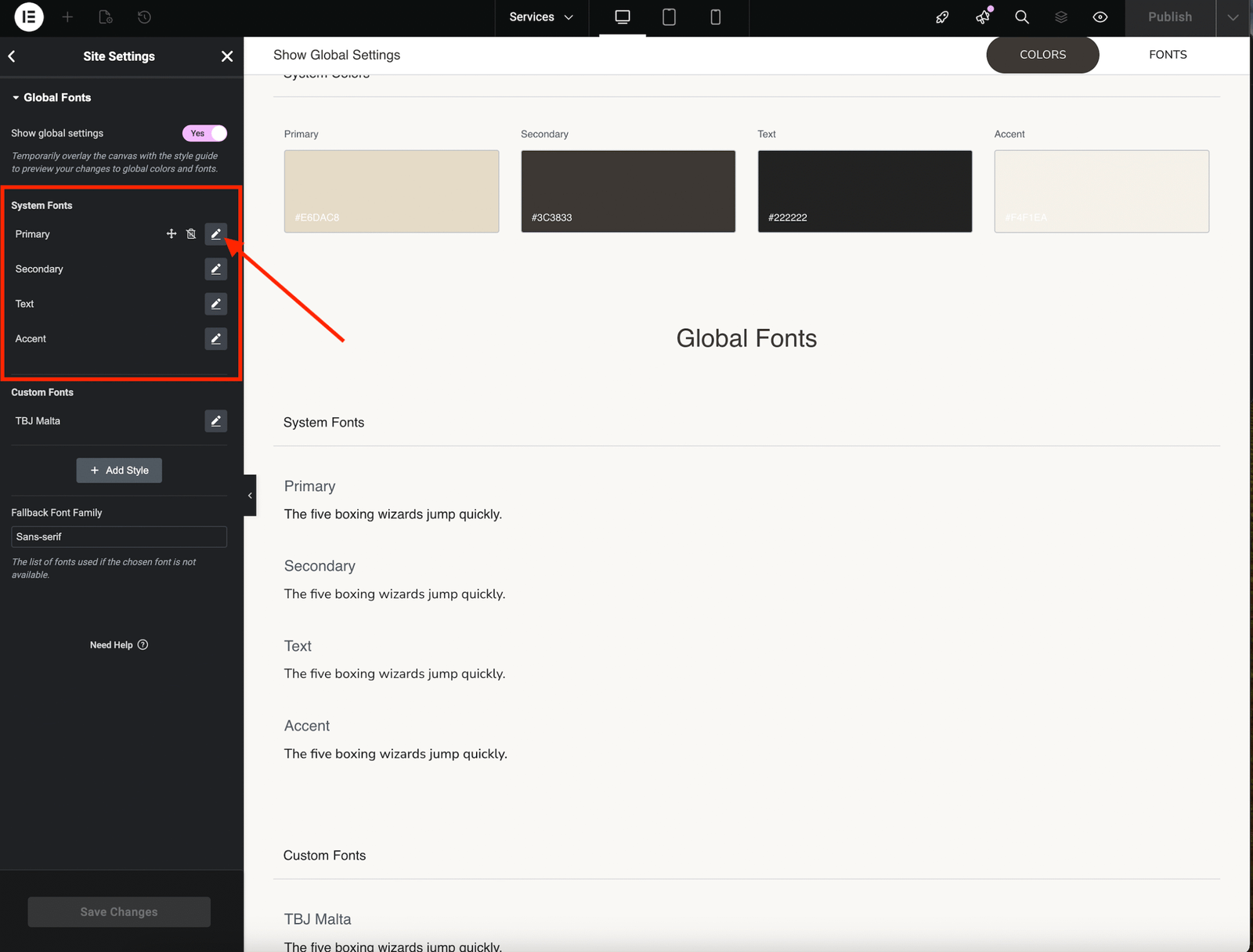
• You will see four font options: Primary, Secondary, Text, and Accent.
• Click the pen icon next to the font you want to replace.

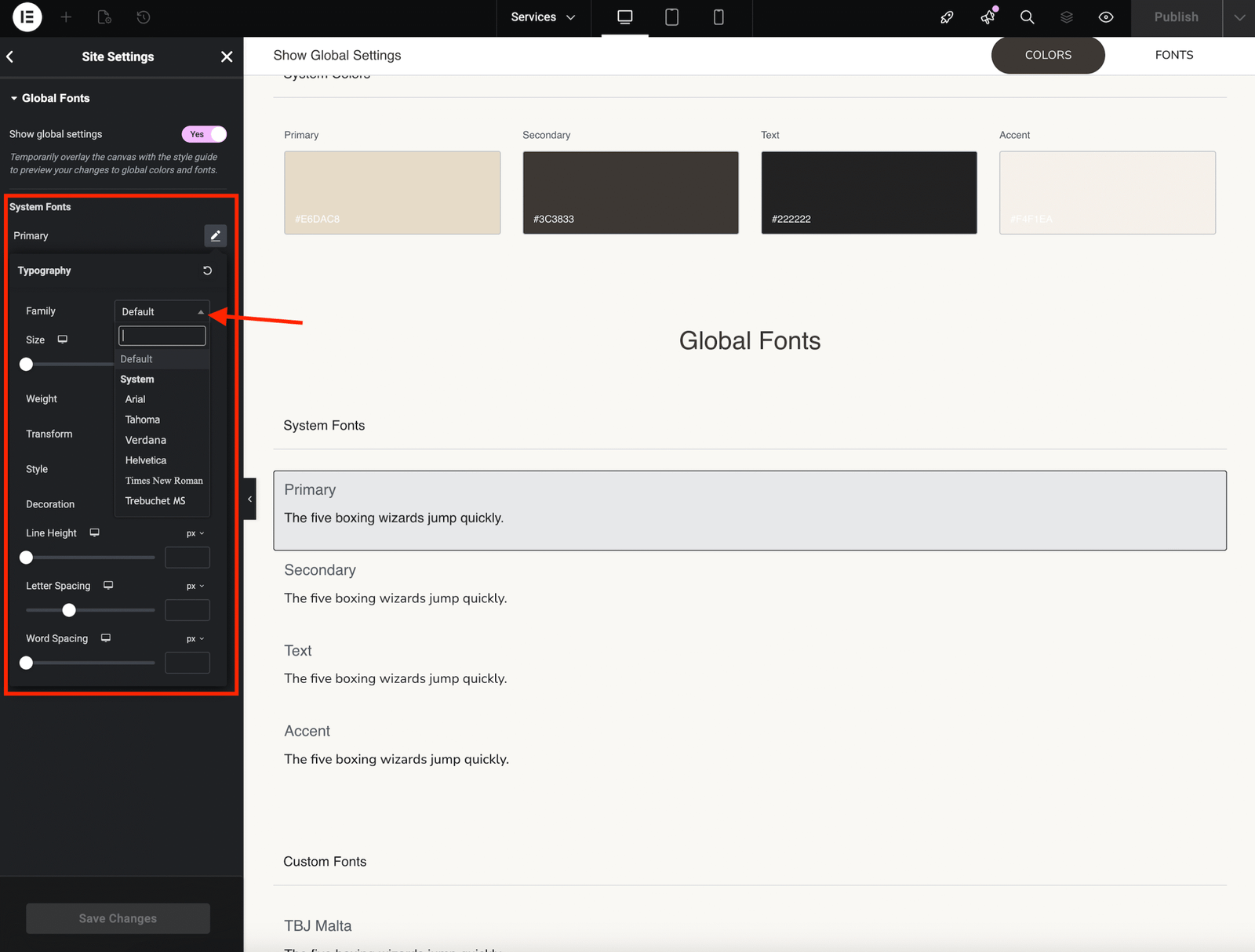
• In the Family section, click the arrow next to Default.
• Search for your font by typing its name or selecting it from the dropdown list.

• Click Save Changes once you are done.
Exiting Site Settings


• To return to your WordPress Dashboard, click the hamburger menu again and choose Exit to WordPress.
Elementor Pro
Install Your Theme & Import Demo ContentEditing Text & Replacing Images

Leave a Reply Cancel reply

Your email address will not be published. Required fields are marked *

COPYRIGHT §2025 VANHA KOTI STUDIO

  • THEME SET UP & TUTORIALS
  • Submit A Ticket